
Choose the check you need
The free readiness scan checks up to 50 public pages for access, page content, structure and business details. It is a check of your website, not a measurement of every place your business appears online. Free accounts open Website Readiness, which keeps the gauge, area bars, saved checks, suggestions and page details together. Overview appears when you buy a full report or have an active subscription. About this scan explains coverage and lets you download the original saved data.
A $12 one-time Premium report adds outside search and AI-answer research where data is available. Subscribers can use an included monthly website refresh. Ongoing tracking and analytics require a subscription. AI writing is included with Growth and Business; one-time dashboards still support manual drafts and exports.
Enter your website, then confirm the details
Enter the public website address.
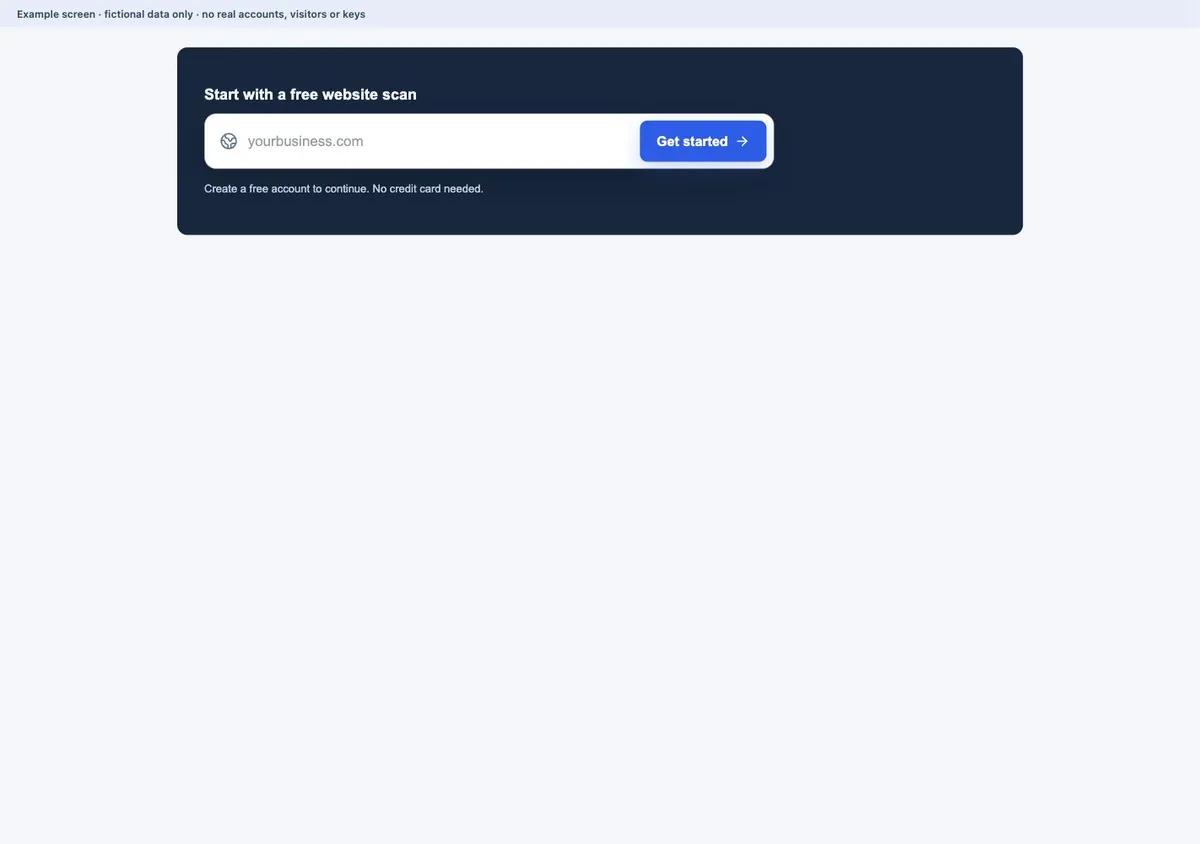
Use the homepage website box and select Get started. If you are signed out, create an account or log in. If you are already signed in, you go to your dashboard.
 Open larger image ↗
Example screen Enter your website, then choose Get started. Sign in or create an account before confirming a scan; typing a URL alone does not start research. Select Add a website in the dashboard top bar.
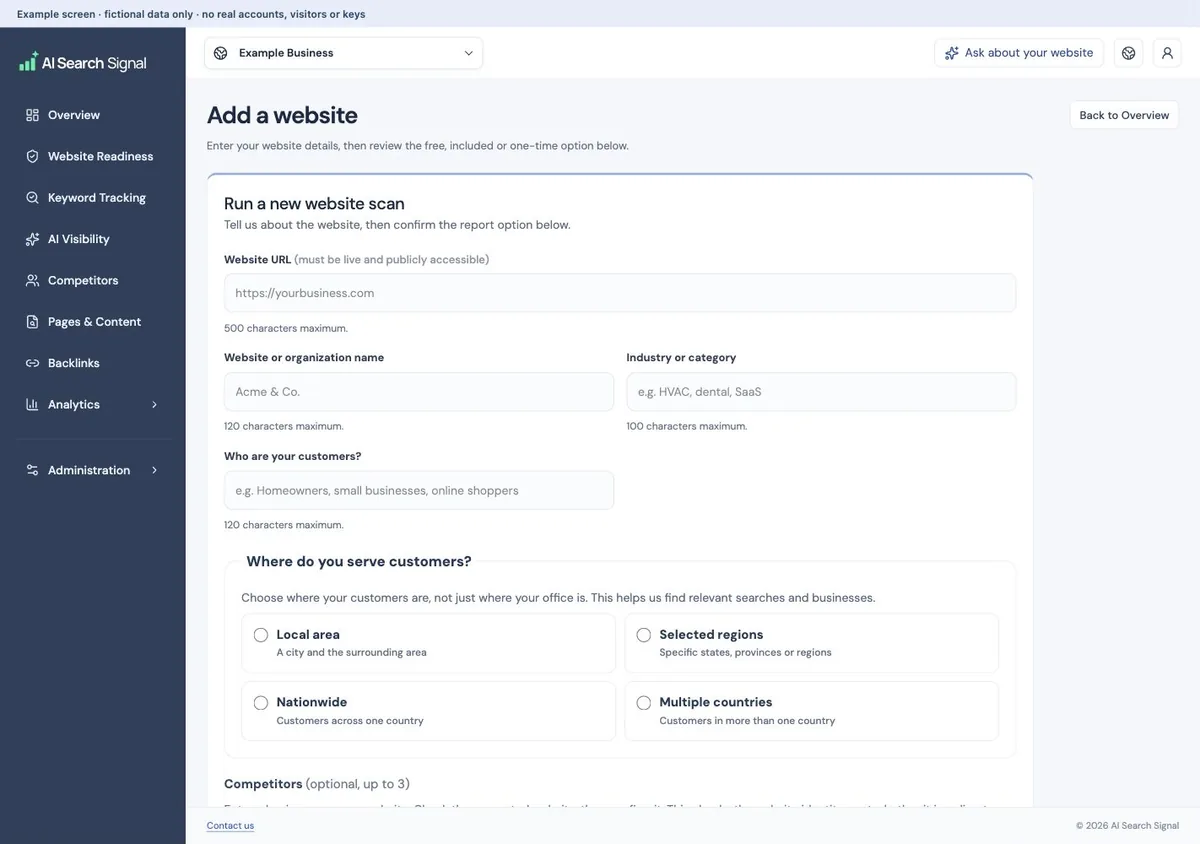
Review the website address and fill in the business name, industry and market information. A website saved from the homepage is a starting point, not permission to run a scan.
 Open larger image ↗
Example screen Use Add a website in the top-right controls. The signed-in account supplies the email; review the business details and available option before confirming a scan. Choose the whole business or one location.
Choose My whole business or brand for a business with one location, an online business, or all locations together. Choose One specific location to focus on a store, office or branch. Enter its name, store number or address and use its own location page or dedicated website. A corporate homepage does not establish what a particular branch offers.
Describe what you offer and where customers search.
Choose the service area that reflects your customers. These places guide local research; they do not change the whole-business or single-location choice. A local shop and a nationwide company need different research context. Do not add services or cities just to attract more searches.
Confirm any competitor websites you want to include.
Competitors are optional. Enter a name and select Find website, or enter a public URL and select Check website. Read the suggested page name and website address, then choose Confirm website only if it is the business you mean. A name check may not find every website. If no clear match is found, enter its URL or choose Leave this competitor out. Only confirmed website addresses go into a new scan. Confirming an address does not prove that the business is a direct competitor.
Review the report option before starting.
Choose an available free or paid option. When a subscription allowance applies, the form uses that allowance. A purchase or extra run requires the relevant confirmation; entering the form alone does not buy a report.
Find the report after it finishes
You can leave while the scan runs. Sign back in to the same account, choose your website in the top bar and open Website Readiness for a free check, or Overview for a full report. Open Administration → History & Exports to reopen another saved snapshot. History follows the website chosen in the top bar. Choose All websites to browse your account’s snapshots with each website labeled; exports include only the selected snapshot. Changing the main website dropdown returns history to that website. Do not submit the form again simply because you left the page.
A scan can take a few minutes, depending on the website and outside services. A failure or missing-data notice is a reason to inspect the status, not proof that a new paid scan is needed. Contact us with the website and the visible error if the result stays stuck. Do not send passwords or private connection keys.
For more help, open Knowledge Base from the public footer or the homepage’s Practical guides section. The homepage link opens in a new tab so you can keep your dashboard open.
Why fewer than 50 pages may be checked
Up to 50 is a limit, not a promise that every site has that many reachable pages. Discovery, redirects, access restrictions, duplicate URLs and fetch failures can affect coverage. Read the report’s page-coverage details to see what was examined. A page that was not examined is not automatically missing or broken.
Useful links
Product documentation prepared with AI assistance and checked against the current application. If a step no longer matches your dashboard, let us know. Do not send passwords or connection keys.