
Pages that load with JavaScript
The website sample starts with the normal page reader. When a public page needs JavaScript to reveal its main content, a browser fallback may run the page and capture visible text, headings and links. This can help us understand the business without mistaking a loading message or cart text for the page itself.
Browser reading is limited to ten important pages per crawl, within the existing overall page sample. Saved captures are reused when the same crawl resumes. If access, time or the reading allowance prevents completion, we keep the original capture and explain the limited coverage. This does not prove the website lacks content. The fallback does not sign in, remove paywalls, solve challenges or forward private scanner keys.
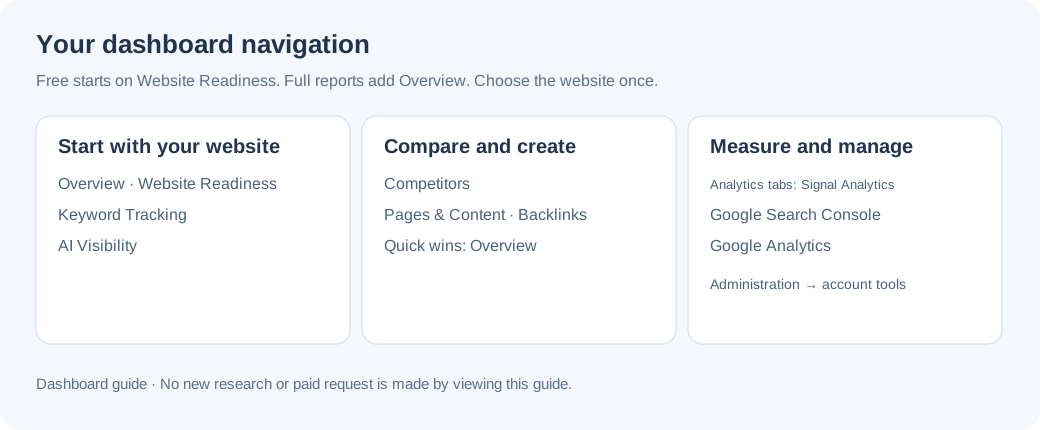
Each section answers a different question
A free snapshot without a subscription opens Website Readiness and has no Overview item. Buying a full report or having an active subscription makes Overview available. A subscriber viewing a free snapshot sees a compact summary; the full readiness gauge and bars remain on Website Readiness.
| Section | Use it to |
|---|---|
| Overview | Available with a full report or an active subscription. Compare AI, search and keyword charts where data is saved, then open the relevant section. |
| Website Readiness | The starting page for free accounts. Read the readiness gauge, area bars, saved checks and individual page details. |
| Keyword Tracking | Read rank-distribution bars, comparable keyword changes and saved ranking history, then open the keyword rows. |
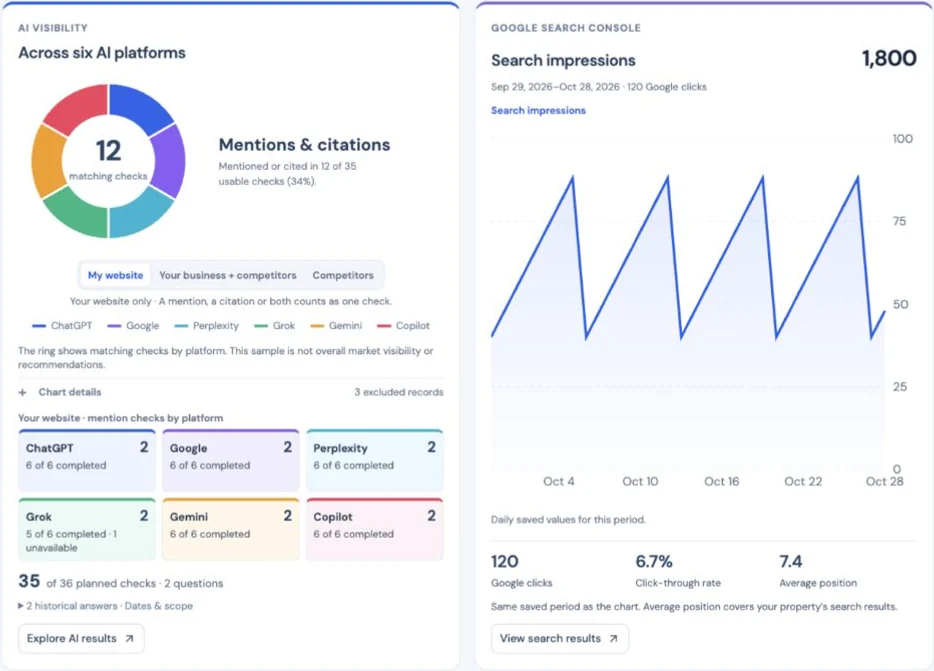
| AI Visibility | Compare fresh ChatGPT, Google AI Mode, Perplexity, Grok, Gemini and Copilot checks. Read completed-check, mention and citation counts, then open the full saved answers. Historical research and business descriptions stay separate. |
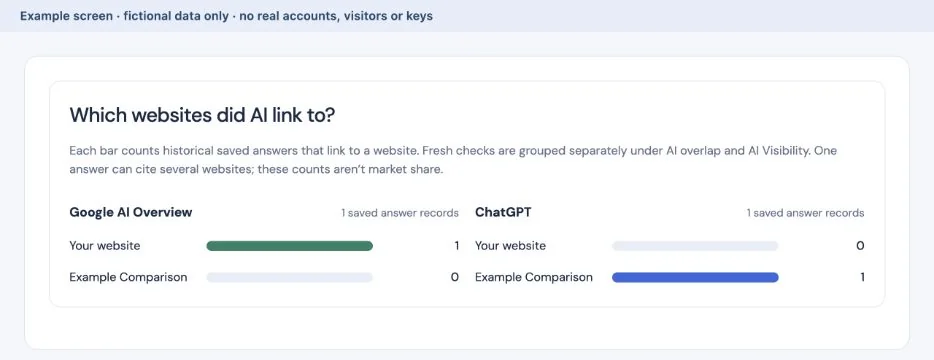
| Competitors | Compare historical AI-citation bars, fresh AI overlap, research and cited sources. These are dated samples, not market share. |
| Pages & Content | Review saved pages, topic ideas and drafts. |
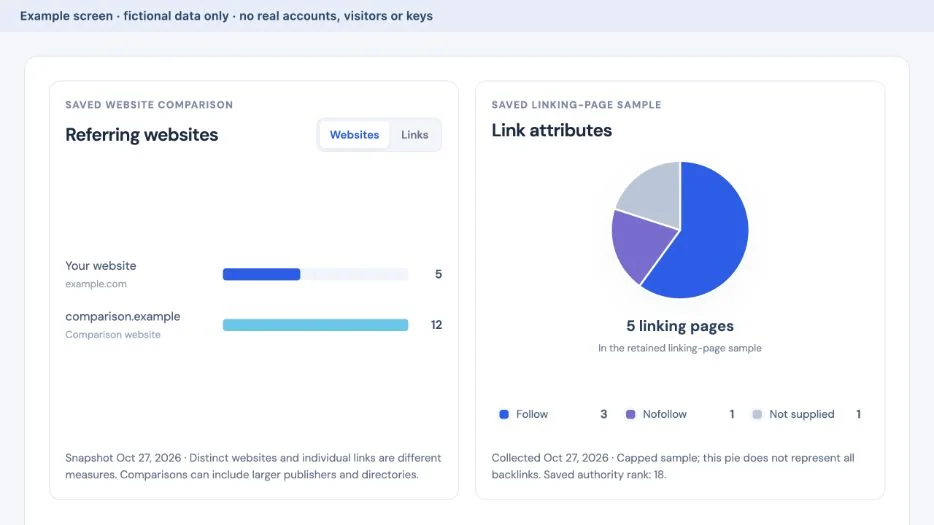
| Backlinks | Compare referring-website or incoming-link bars and the saved link-attribute pie. Keep source ideas separate from confirmed links. |
| Overview → Quick wins | Open small supported improvements, then review their pages and supporting records inside the popout. |
| Analytics | Switch between Signal Analytics, Google Search Console and Google Analytics. Their traffic graphs, source breakdowns and dates describe separate datasets. |
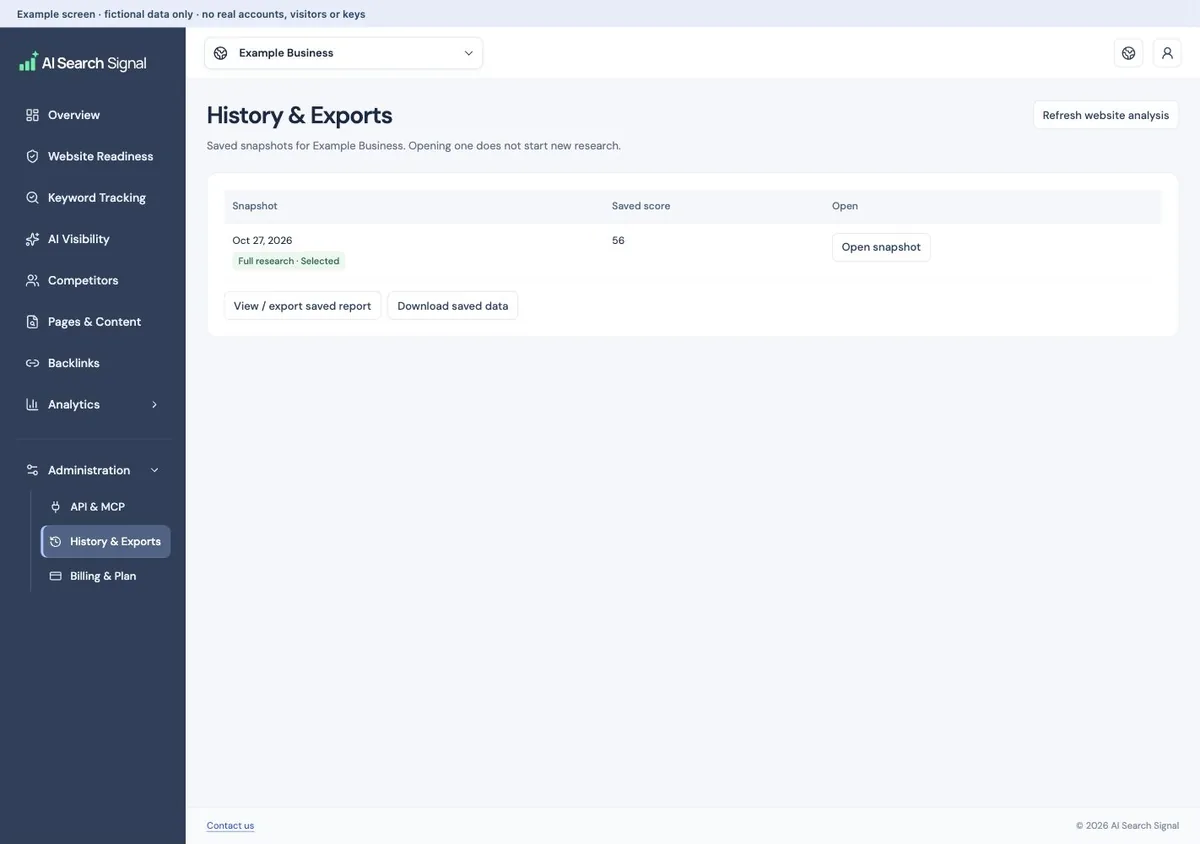
| Administration → History & Exports | Open older snapshots or export saved research. |
 Open larger image ↗
 Open larger image ↗
Keep your filters and reading position
Your search, filters, list page and scroll position are kept as you move through supported popout views. Back restores the list or finding you came from. Returning to an item also restores its reading position. Closing and reopening a panel can keep its place while you continue using the same dashboard and saved report.
For example, search the saved pages in a readiness area, move to page 2 of the list and open a page. Previous and Next browse the matching pages. Back to review area returns to the same search, list page and reading position.
Remembered views belong to the current dashboard session and saved report. Reloading the page, signing out, switching accounts or choosing another report can reset them. Treat this as a reading aid rather than a permanent bookmark.
Opening a popout, changing a filter, or using Back, Previous or Next reads saved information. It does not purchase a scan or keyword lookup, generate writing, edit your website or change the original saved answers and sources.
If a website blocks our scanner
A website can refuse automated access even when it opens for visitors. Website readiness and page-content checks stay Not assessed when we cannot read the pages. This does not establish that Google or any AI platform is blocked.
The blocked-site screen offers two choices. Allow our scanner provides a private website key, hosting instructions and a free access test. Or confirm current main products or services and location, review proposed buyer questions and coverage limitations, then choose available outside research. Confirming business details alone does not buy research.
AI answers, rankings, backlinks and competitor observations depend on available outside data. Confirmed details are not presented as verified website content. Unreadable scores, missing-content findings and page-change recommendations remain unavailable. A report credit reserved before the access block is released until you explicitly start the limited research.
Allow scanner access at your hosting or firewall
The Allow our scanner panel appears for blocked websites. It is available to the signed-in account that owns the saved website. Confirm that you manage the website or have permission, then choose Create private scanner key. Creating a key does not change your host or start a scan.
Each private key is scoped to one account and one exact HTTPS hostname. It is encrypted in storage. Keys are separate from report answers, exports and chatbot context. Public guides use placeholders only. Treat a key as a credential: share it only with the website manager or host you authorize. Do not post the real key or personalized rule in a public ticket or screenshot.
Our requests identify themselves with AI-Business-Scanner/1.0 and carry x-ai-search-signal-key with that website’s private value. The name alone is not proof of identity. A generic example is x-ai-search-signal-key: YOUR_PRIVATE_WEBSITE_KEY. This example is not a working key. This method is a private shared-key firewall exception, not registration as a Cloudflare verified bot.
For Cloudflare, open the website’s Security → Security rules → Create rule → Custom rules. Paste the personalized expression from your dashboard and choose Skip for only the security feature that blocked the scanner. Keep request logging and unrelated protections enabled. The expression restricts the exact hostname, read-only GET/HEAD requests, private key and scanner name, and excludes common account, admin and API paths. Existing website authentication remains in place.
Cloudflare’s basic Bot Fight Mode cannot be skipped using a custom rule. If its event identifies Bot Fight Mode, or your host accepts only source IP addresses, the private-header rule cannot solve that restriction. We do not currently publish a dedicated outbound scanner IP. Do not allow all Cloudflare IP addresses, invent an IP, or disable the entire firewall. Ask your host which narrowly scoped access method it supports.
My hosting company gives you a private request to copy into an authorized support ticket. A WordPress plugin cannot remove a hosting or firewall block that occurs before WordPress loads. Do not assume a rule installed inside WordPress can bypass an upstream security layer.
After the host saves its exception, choose Check scanner access. This makes a free homepage request using the configured key. Only readable HTML without a detected browser challenge is reported as readable. The key is not forwarded to another hostname, including a redirect to the www version. A successful homepage test does not prove access to every page or modify a saved report. You can start a separate readiness check afterward.
Replace key creates a new private key: update your host’s rule and remove the older key there. Stop using key stops future report steps using that saved key; requests already in progress may finish. Remove the host’s old rule too. Disabling a key in this dashboard cannot remove a rule from another company’s firewall.
Review a page without leaving Website Readiness
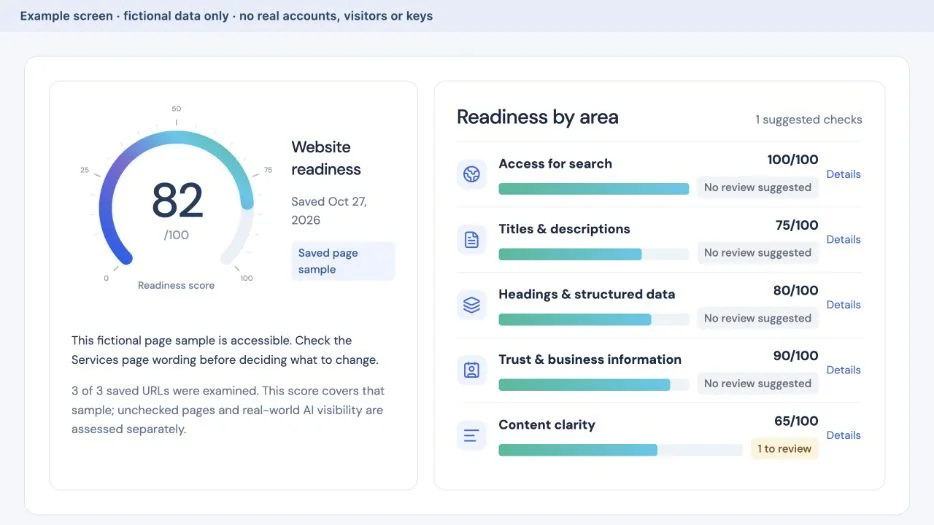
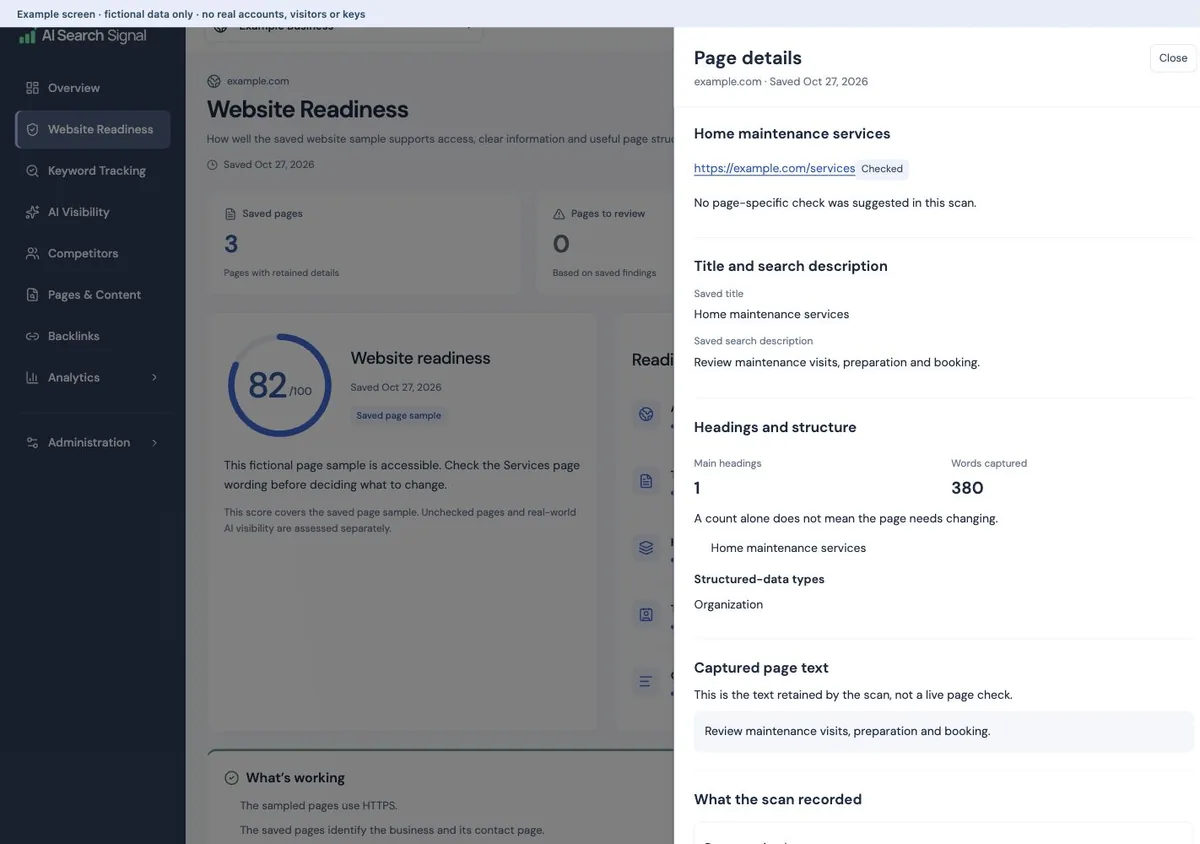
Readiness by area groups your existing scores and supported checks. Choose an area to review its saved findings, then open an individual page without leaving Website Readiness. The saved-pages count refers to retained page details; pages to review counts URLs with supported checks, and failed requests stay separate. In Pages checked, choose View page details. A side panel shows the page’s supported checks, saved title and description, headings, captured text and related source records. Checked means the scan recorded an examination; it does not mean every possible issue was ruled out.
The popout’s Previous and Next controls move between readiness areas or related saved pages. When you open a page from an area’s filtered list, Back to review area restores that area’s search, list page and scroll position. From Pages checked, Back to readiness returns to the report’s existing filters.
About this scan opens dates, coverage and scan records in the same view. Failed or unchecked URLs and partial page copies keep their own labels. The original page record and complete saved research are available to download. Older snapshots and exports remain under Administration → History & Exports.
 Open larger image ↗
 Open larger image ↗
Open supporting details in the same section
Supporting details opens the linked saved records in a side panel. About this data shows dates and coverage for the section you are viewing. Choose Read this record to read one original record, then use Previous and Next to compare matching records. Back to records restores the search, list page and reading position. Close returns to your report with its filters and selection.
If a linked record was not retained, the panel says so. Browse saved research opens the wider saved collection inside the panel. Back to supporting records returns to the original selection, keeping its own search separate from your wider research search. Downloads keep the original records. To open a different snapshot, use Administration → History & Exports.
Find a useful next step and follow your improvements
Quick wins shows up to three small edits or focused reviews on Overview and Next Steps, with one item per page. It can include missing titles or descriptions on examined pages, vague headings with corroborated page text, a supported single AboutPage-label check, and already-supported AI-answer comparisons tied to existing page text. Each card shows the saved finding, a clear action and supporting evidence. Search opportunities still include relevant dated positions from 4–20, page-level click declines between comparable Google periods, or pages with at least 100 impressions and a click rate of 1% or less. These are checks to consider, not confirmed content gaps or guaranteed ranking gains. When none qualify, the panel explains the evidence or measurement limits, distinguishes loading and connection failures from missing data, and links to website checks, saved research and Google Search Console. No scan, provider purchase or website change is started by this list.
On Overview, choose Quick wins, then View quick win to read one finding. Use Find a quick win to narrow the list. Previous and Next follow the matching findings, and Back to Quick wins restores the list and its reading position. Review page and Supporting details open inside that same panel; Back returns one level at a time. Opening a review does not edit your website.
After you change a page, choose I updated this page or Record an update. Save the page, date and a brief note. This records your work; it does not edit or publish the website. Your Improvements list is saved with your account and website across report versions. View progress opens the original available baseline and later comparable measurements in the same section.
Google comparisons need matching properties and equal-length periods wholly before and after your update. Rank comparisons keep the same source, page, query and market; scheduled checks also keep their original series. Simulated checks are excluded. Missing baselines, failed checks and outside-range results stay labeled, and there is no inferred improvement while a later measurement is missing. The progress panel follows the recorded update, its earlier baseline and later comparable evidence. New baselines can also retain business mentions and appearances for questions associated with that page; these are not visits or proof that the edit caused a result. Different AI questions or research context start a new baseline, and incomplete samples remain unassessed. History & Exports links to the same recorded Improvements. Other factors can affect the results. Remove from history hides an entry and offers Undo.
Find account tools and contact us without leaving your work
Administration opens API & MCP first. History & Exports holds older snapshots and downloads; their dates stay in the snapshot list. Billing & Plan shows available purchase options or your actual subscription. Admin accounts see a customer view with checkout disabled, without changing their internal access.
Analytics has Signal Analytics, Google Search Console and Google Analytics when available, with a remembered tab order. The website selector remains the starting point for your saved business.
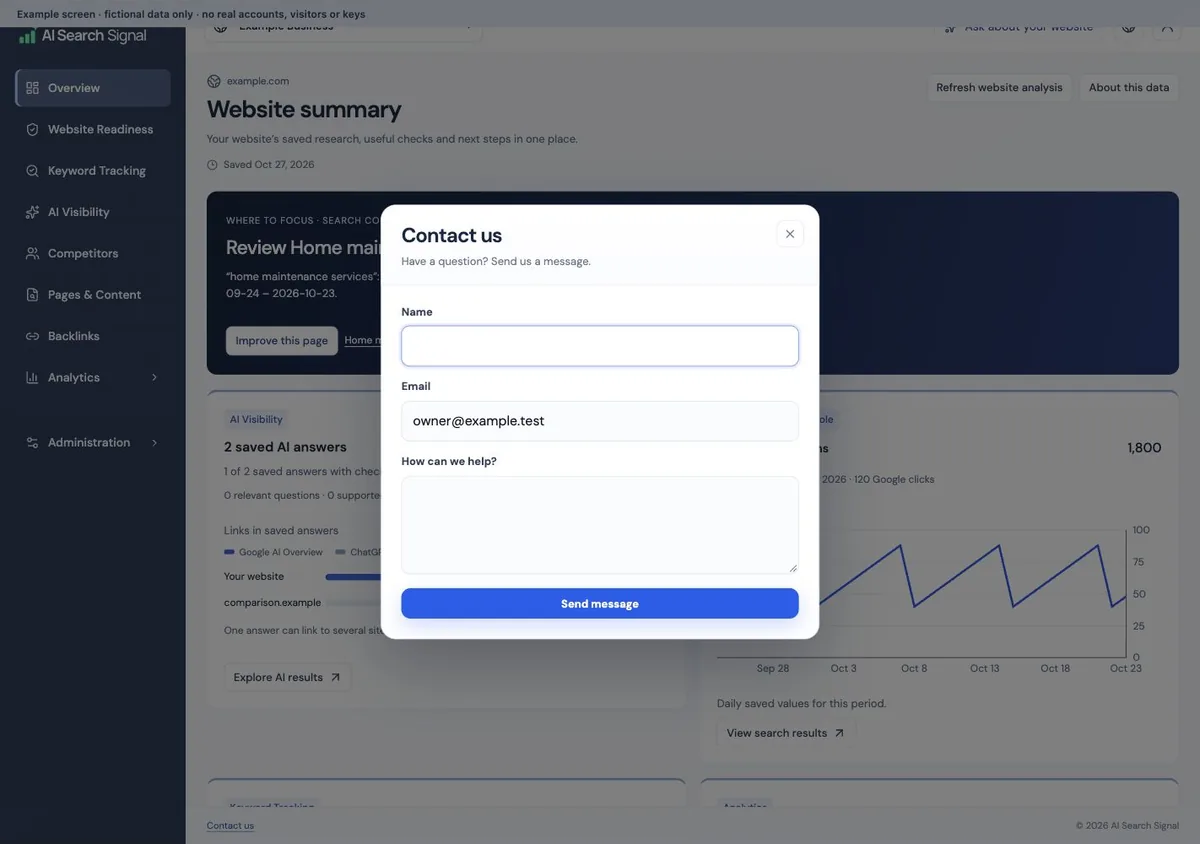
Contact us in the fixed dashboard footer opens a popup, with your account email filled in. Closing it returns you to the same page. Sending the form sends a real message; do not include passwords, payment details or connection keys.
 Open larger image ↗
 Open larger image ↗
A score describes this saved check
The readiness gauge is a score out of 100 for the saved sample, not a time-series chart. Read the coverage beside the readiness score. It describes the checked website pages, not a complete measurement of real-world AI visibility, sales or Google rankings.
Search Console, analytics and new comparison collections stay separate from original scores. New research does not justify inventing recommendations or changing a score to make the dashboard look better.
Check a task before editing
Open the exact page.
Confirm that the issue still exists on the current website.
Read the evidence.
A genuine zero appearances in this sample stays zero. Missing answers, failed requests and excluded advice have separate labels.
Review any draft against business facts.
Do not invent prices, services, reviews, guarantees or locations. Supported existing-page reviews ask you to check coverage before assuming a gap.
Use the completion check.
Follow the “You’re done when…” instruction and share the page and task with your website person. The dashboard does not publish edits.
Observations are separate from recommended changes
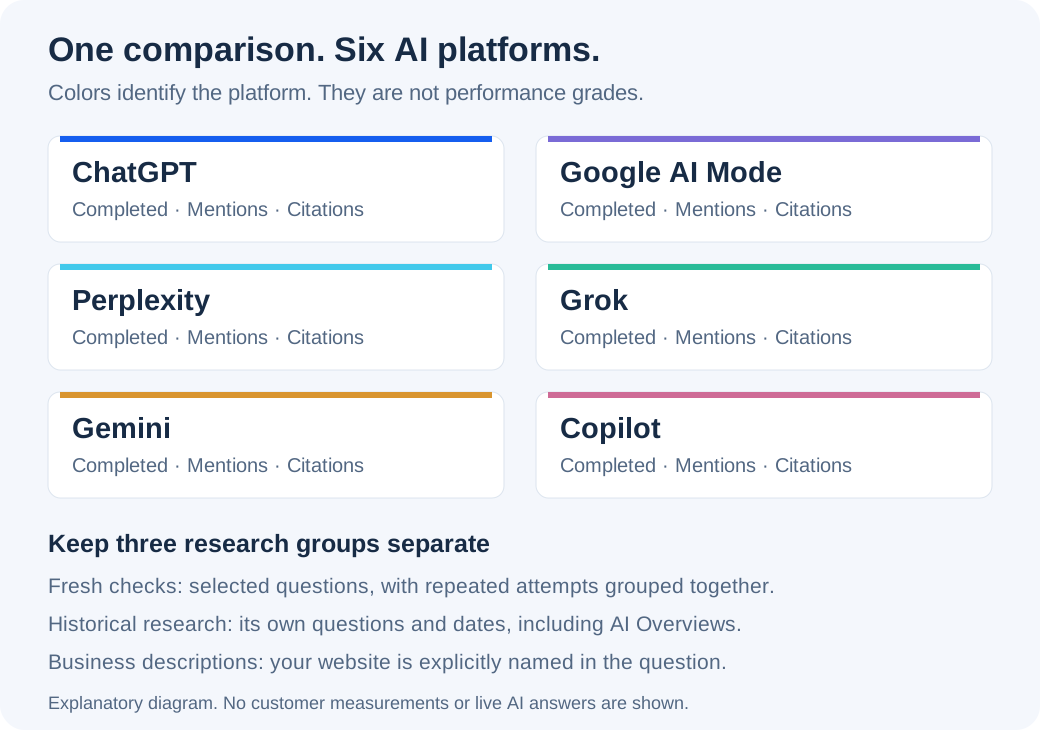
New paid reports check the same selected buyer questions across ChatGPT, Google AI Mode, Perplexity, Grok, Gemini and Copilot. Completed checks show business mentions and website citations separately.
Historical answers, including Google AI Overviews, keep their own questions and dates. Business-description checks explicitly name your website and do not demonstrate independent discovery. Older saved reports are not automatically backfilled.
A generated question is not proof that customers searched for it. A phrase returned in research may be irrelevant. All retained research stays accessible with its source and qualification.
An AI citation to another website does not establish a gap on your page. Customer-nominated software comparisons do not require local-shop verification; local-business advice still needs supported service-area relevance.
 Open larger image ↗
 Open larger image ↗
 Open larger image ↗
Read each number in its own scope
A saved organic position is not a fresh rank. Search Console average position covers a period. Estimated monthly searches are not visits. Compare ranking changes only within the same measurement series.
Broad provider appearance totals are separate from counts of retained answers. A question sample is not a record of what real buyers saw. Link totals, collected backlink pages and AI citation source ideas are different datasets; an uncollected link list is not zero backlinks.
Useful links
Product documentation prepared with AI assistance and checked against the current application. If a step no longer matches your dashboard, let us know. Do not send passwords or connection keys.