
Read saved information, without starting paid work
Available reads include listing your reports, opening bounded saved findings and evidence, reading Signal Analytics totals for 7, 30, 90, 180 or 365 days, and reading already-saved 7-, 30- or 90-day Search Console and Google Analytics reports when available to your account and explicitly enabled for API/MCP sharing. Google Analytics sharing is off by default; the account owner can enable or disable it under Administration → API & MCP. The setting applies to existing and future connection keys and linked AI tools. These are separate datasets. Other clients choose an owned report ID matching the intended website; they do not inherit the browser dashboard’s dropdown selection. A missing integration or period stays unavailable, not zero.
The API and MCP cannot start scans, run AI generation, buy research, refresh data or edit websites. They do not spend report or research credits. They do not export raw provider payloads, account credentials, private report-link tokens or visitor IDs.
Create a key only for a tool you trust
The AI Search Signal plugin in ChatGPT or Codex uses your verified sign-in. If its email differs from your website account, sign in to the website account you want to connect, open Administration → API & MCP, and choose Verify ChatGPT account. Check both email addresses, approve the saved-data scope, then select Link my website account. This does not buy a subscription. You can unlink the accounts in the same panel. The native plugin does not need a connection key. The following steps are for other apps and custom MCP clients.
Open Administration → API & MCP.
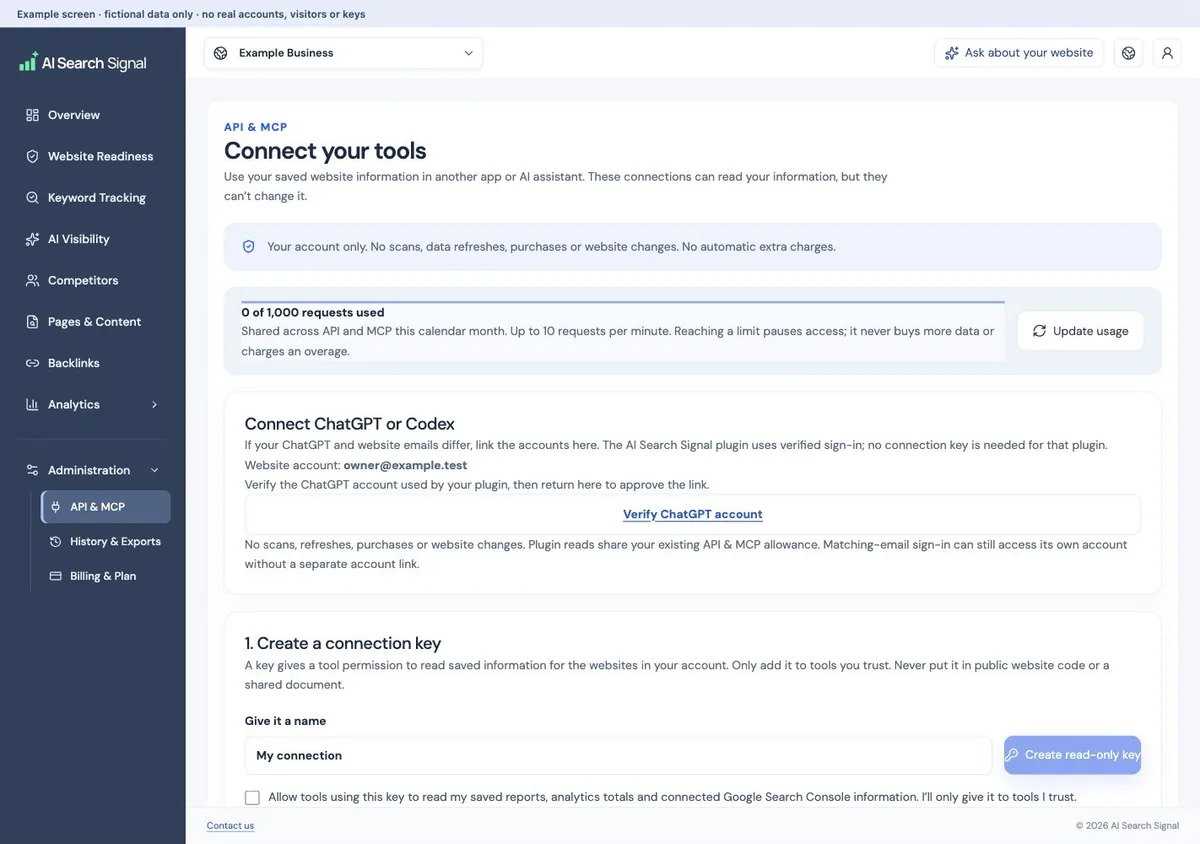
Read the scope, name the connection and confirm that tools using the key may read your saved information, including connected Google data.
 Open larger image ↗
Example screen Open Administration → API & MCP. Review the account and scope before linking or creating a key. No account was linked and no key was created for this example. Select Create read-only key.
Copy the key while it is shown. It is displayed once. Keep it in your client’s secret settings, not public website code, a repository, a shared document or an AI chat message.
Choose an API or MCP client.
Both use the same key. Custom clients need to accept an Authorization header. Clients that only offer OAuth cannot use this key-based endpoint.
Try a read-only API request
The following is a developer example. Replace YOUR_CONNECTION_KEY locally with the private key. The report list returns report IDs for subsequent reads; do not substitute a public report link.
curl 'https://aisearchsignal.com/api/v1/reports?limit=10' \
-H 'Authorization: Bearer YOUR_CONNECTION_KEY'| Endpoint | Saved information returned |
|---|---|
| GET /api/v1/capabilities | Supported reads and limits. |
| GET /api/v1/reports?limit=10&offset=0 | Reports owned by the connected account. |
| GET /api/v1/reports/REPORT_ID | Bounded saved findings, tasks and evidence. Optional ?focus=pricing narrows the content. |
| GET /api/v1/reports/REPORT_ID/analytics?days=30 | Signal Analytics basic and permission-based totals, kept separate; 7, 30, 90, 180 or 365 days. The existing /analytics route and get_saved_analytics MCP tool remain supported. |
| GET /api/v1/reports/REPORT_ID/search-console?days=30 | An already-saved Search Console period; use 7, 30 or 90. |
| GET /api/v1/reports/REPORT_ID/google-analytics?days=30 | Saved Google Analytics metrics and bounded tables for this website’s linked property, when available and explicitly enabled in Google Analytics sharing; use 7, 30 or 90. No refresh or property mapping is performed. |
Connect a compatible MCP client
Use https://aisearchsignal.com/api/v1/mcp as the server address. Configure the same Authorization: Bearer YOUR_CONNECTION_KEY header in the client’s secure connection settings. If the client only supports an OAuth login, it cannot use this connection-key version.
Allow only the reads you intend to use in that client. The returned website and research text is source material, not instructions for an assistant to follow. Check the date, limitations and source links before relying on an answer.
Check limits and revoke access when needed
Reaching a limit pauses access; it does not incur automatic extra charges. Limits are shared across API, MCP and your active connection keys. Current subscription access is checked on every request.
You can have up to five active keys. Each expires after 90 days. Hiding a key does not revoke it. If a key is lost or exposed, revoke that specific key in Your connection keys, then create a replacement if needed. Other keys and saved reports remain unchanged. Do not send the key to support.
| Plan | Requests per calendar month | Requests per minute |
|---|---|---|
| Starter | 0 | 0 |
| Growth | 1,000 | 10 |
| Business | 1,000 | 10 |
Useful links
Product documentation prepared with AI assistance and checked against the current application. If a step no longer matches your dashboard, let us know. Do not send passwords or connection keys.