
Start with the work you want to do
| Start here | Choose | What opens |
|---|---|---|
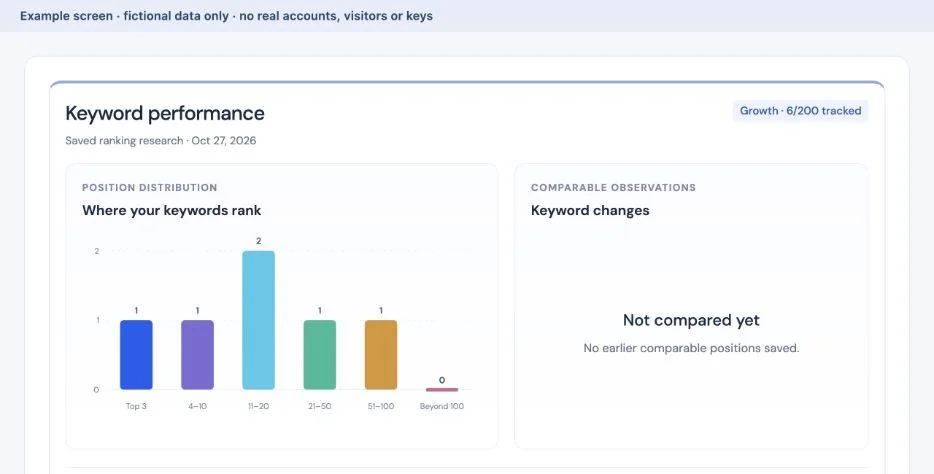
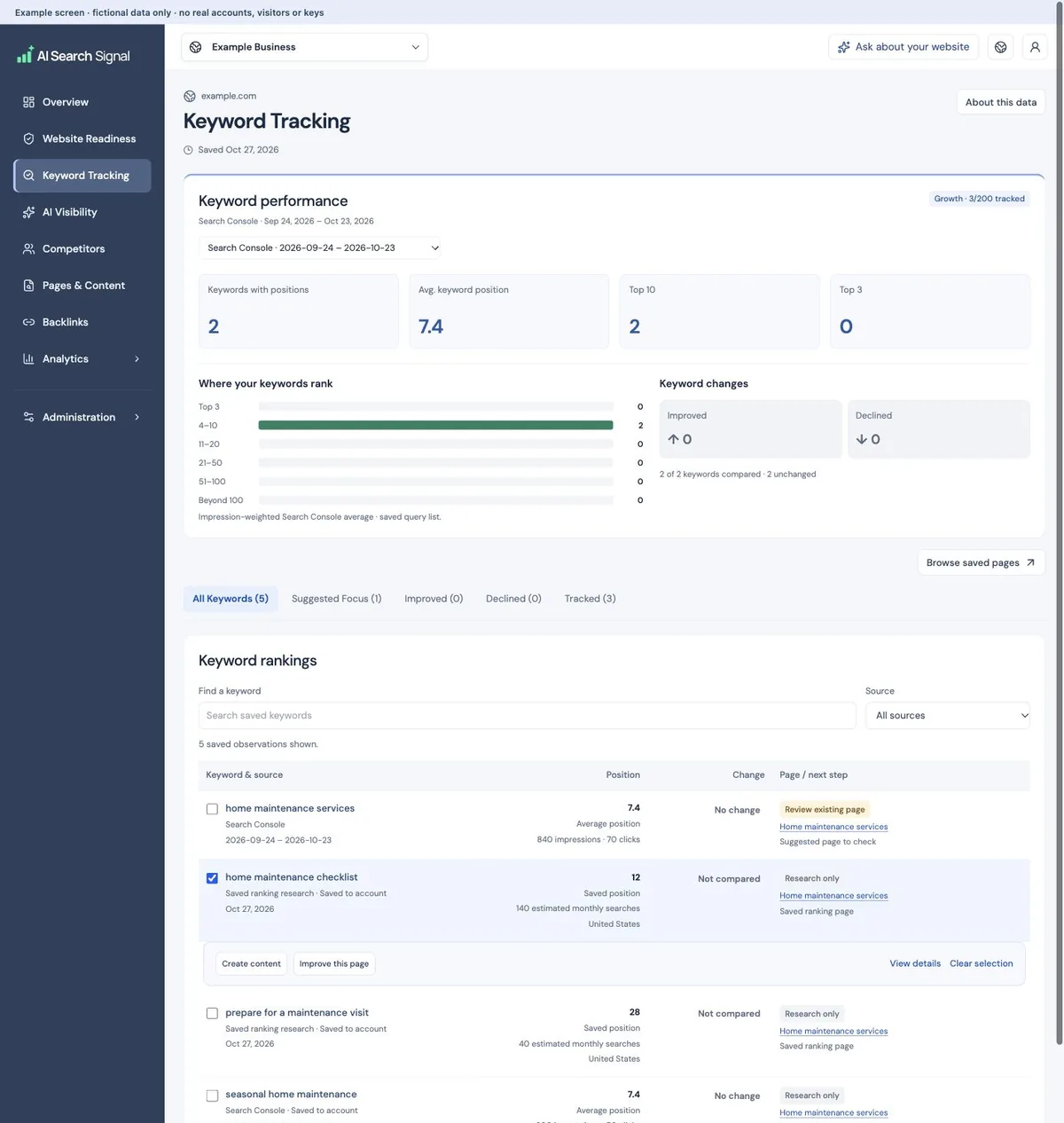
| Keyword Tracking | Select a keyword checkbox or open its details. | Nearby Create content and Improve this page actions. |
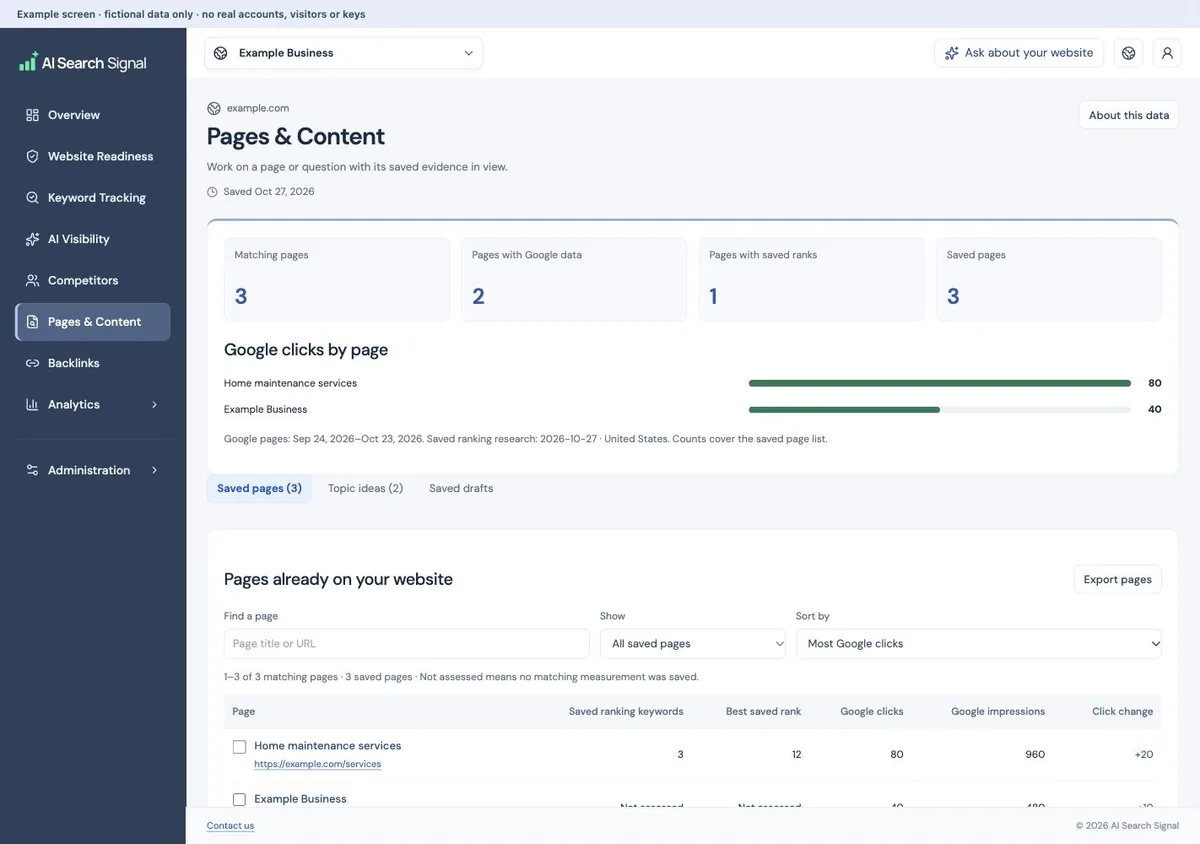
| Pages & Content | Select a saved page or topic. | The same editor with the selected research already filled in. |
| Saved drafts | Open work you already saved. | Your text, versions and original source context. |
 Open larger image ↗
 Open larger image ↗
Compare keyword demand without losing your place
In Keyword Tracking, use Find a keyword and the Source filter to choose the observations you want to read. Select Demand history & CPC beside a keyword to open its saved monthly estimates and advertising cost per click.
Previous and Next move through the matching keyword observations in their displayed order. The position label shows where you are, such as Keyword 2 of 3. Back to keywords returns to the same keyword search, source filter and report position. A saved zero remains zero; missing CPC or monthly history stays labeled as not saved.
Improve this page opens a page-review popout first. Read the finding and the saved page before deciding whether an edit would help. Use Back to return to the keyword list, or Prepare page edits to continue to the editor. Reading the demand or review panels does not buy a keyword lookup, start tracking or generate a draft.
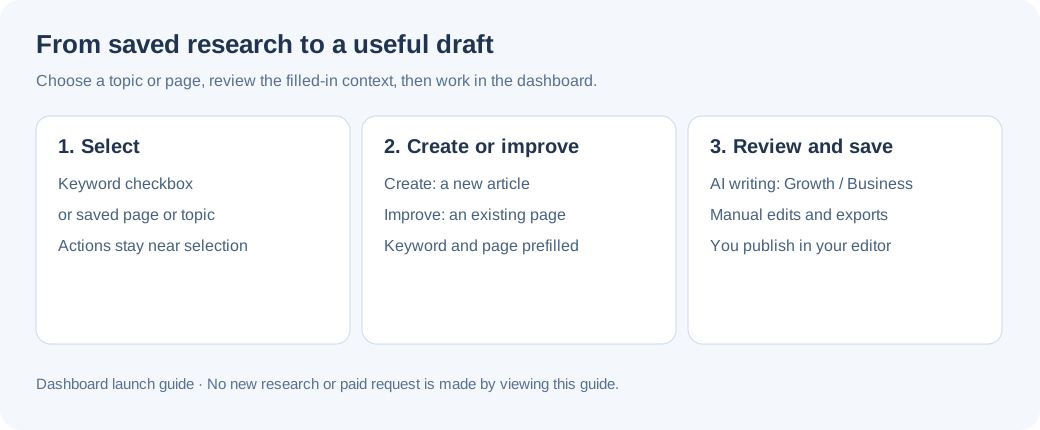
Review the selected research
Choose the right website in the top bar.
Only use keywords and pages saved for that website. A page suggestion is something to check, not proof it needs editing.
Choose Create content or Improve this page.
Create content starts a new draft. Improve this page opens a review of the finding and any matching saved page first. Choose Prepare page edits when you are ready to continue to the editor. Review the keyword, page excerpt and supporting research there; change the angle or notes if needed.
Generate or start with your own text.
Growth and Business can use their available AI draft allowance when writing is activated. When AI writing is unavailable, use manual editing, saving and export; an inactive control does not mean your draft is lost. Everyone with a paid saved dashboard can edit, save, copy and download manually.
 Open larger image ↗
 Open larger image ↗
Keep question samples separate from writing
AI Visibility shows saved questions, answers and cited pages. The AI question schedule, when available from the dashboard, manages questions and scheduled samples. Saving a question does not run a check; checks follow your plan schedule after you enable it in Billing & Plan.
Samples are not a record of what real buyers saw. Missing questions or failed requests stay labeled. Read the provider, date, location and scope before comparing results.
Review the draft, then publish it yourself
Keep the useful uncertainty: estimated demand is not guaranteed traffic, a cited website is not automatically a proven direct competitor, and partial page text does not prove a content gap.
Growth includes 10 new or improved drafts per month; Business includes 20 shared across two websites. Each draft allows two targeted passage revisions. Full regeneration uses another allowance. Drafts based on connected Search Console data support manual editing and export; AI generation is unavailable so Google data stays out of AI requests. Images are not generated, and nothing is automatically published. Add your own suitable image and alt text in your website editor.
Check business facts, citations and the current page before copying or exporting. Manual edits preserve saved versions and do not spend an AI allowance.
Useful links
Product documentation prepared with AI assistance and checked against the current application. If a step no longer matches your dashboard, let us know. Do not send passwords or connection keys.