
This guide distinguishes documented platform guidance from practical observations. AI and search platforms can change, and no placement or recommendation is guaranteed.
Before you start
Review the images on one page and publish appropriate text alternatives without exposing private information.
Alt text is a text alternative associated with an image. Its wording depends on the image’s purpose and nearby content. A caption is visible supporting text; a filename is a file label. Neither automatically replaces the right alternative text.
W3C’s decision tree distinguishes informative, decorative and functional images. Google also recommends descriptive, contextual alt text without keyword stuffing. Use accessibility as the starting point, not a promise of image rankings.
- Access to one page’s image settings, or help from your website manager.
- The right to use the images and permission from identifiable people when needed.
- You can complete this without buying an AI Search Signal report.
Step by step: review the images on one page
Choose a service or product page and work through its images in order. You do not need to change every image on the whole site at once.
Ask what the image does here
Does it show a repair detail, explain a step, identify a product, act as a link or simply decorate the page? Read the nearby paragraph before deciding. A workshop photo on an About page may need a different description from the same photo used to demonstrate a repair.
Choose informative, decorative or functional
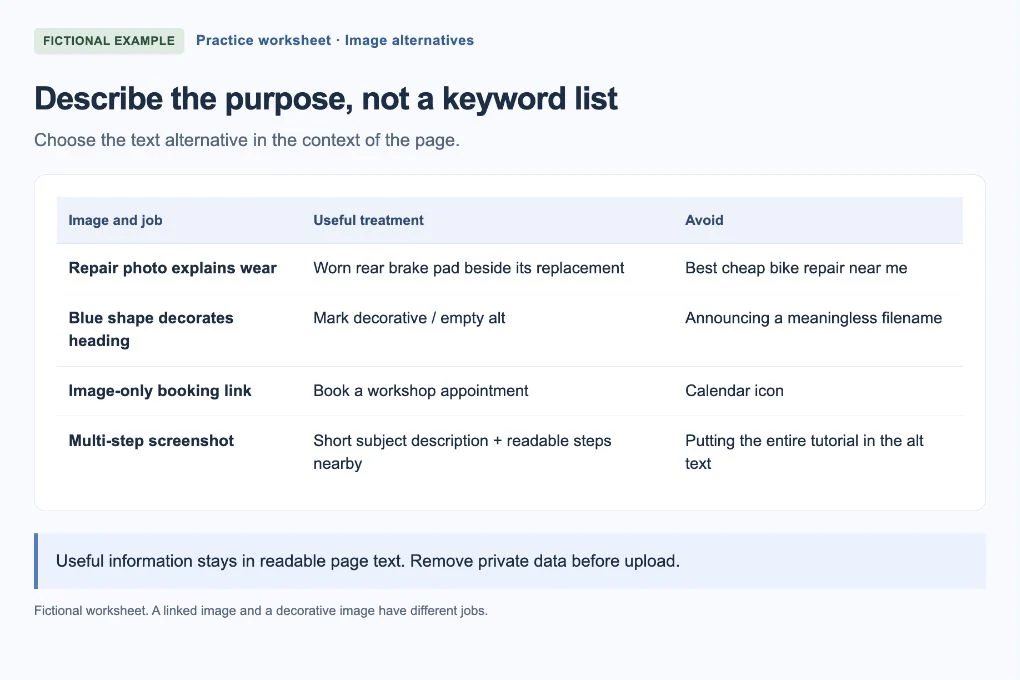
For useful visual information, describe the important content. For a purely decorative shape, use the editor’s decorative option or an empty alt attribute where supported. For an image-only link or button, provide a name that explains its action or destination. Ask your website person to check the accessible name if the control already has visible text.
Write the meaning, not a sales pitch
For a repair detail, “Close-up of a worn rear brake pad beside its replacement” is more useful than “best bike repair cheap bicycle servicing.” Mention a brand, model or place only when the image and its context support it. Do not infer someone’s identity, health, location or other private facts from a picture.
 Open larger image ↗
Example screen Fictional image-review worksheet, not a website-builder screen. Describe an image’s purpose in its page context. Decorative images and image-only links need different treatment. Add it in the right field
Open the image’s settings and look for Alt text or Text alternative. Do not put the description only in a caption or hover-title field. Some editors share image-library text across several uses; check whether your change affects other pages. Save and publish, then ask the website person to confirm the resulting alt attribute if the field’s behavior is unclear.
Keep essential instructions outside the image too
If a screenshot contains several steps or a chart carries important numbers, explain the process or data in nearby text or a table. A short alt can identify the subject and point to the accompanying explanation. Do not cram a whole tutorial into one image description or rely on color alone to explain a result.
Check the public page and the underlying file
Review the page on a phone: are pictures readable and captions clear? Use an accessibility checker or ask your website person to inspect the text alternatives. Tab to image links and confirm their names describe their destination. Before uploading screenshots, remove private information from the image itself and check metadata; hiding it with a caption does not remove it.
Worked examples: the right wording depends on the job
These examples are fictional. The appropriate alternative text can change when the same image is used for a different purpose.
| Image and context | Useful treatment | Why |
|---|---|---|
| Brake-pad comparison in a repair guide | Worn rear brake pad beside its replacement | Describes the visual difference relevant to this explanation. |
| Decorative blue wave behind a heading | Empty alt, or mark decorative in the editor | The wave adds no information the reader needs. |
| Calendar icon as the only content of a booking link | Book a workshop appointment | Names the destination, not just “calendar.” |
| Screenshot of a multi-step estimate checklist | Estimate worksheet showing required photos; steps are explained below | Identifies the screenshot while keeping the full instructions in readable page text. |
| Product photo where color distinguishes a variant | City Light 200 bicycle light, black housing, side view | States visible details without inventing compatibility or performance claims. |
Prepare helpful images before uploading
Use an image that adds something: an original product view, a process photo or a clearly labeled example. Give the file a sensible name, resize it for its actual use and check the result after compression. Avoid an enormous image when a smaller one shows the same detail clearly.
For screenshots, use an empty demonstration account or fictional data where possible. Remove emails, API keys, customer names, payment details and private URL parameters before capture. Check browser tabs, sidebars and notifications as well as the main screen. Do not publish a “redacted” copy until you have opened the exported file and verified what is actually visible.
If you get stuck
The image repeats the nearby caption
Do not repeat a long explanation word for word. Consider what information is already available and use the W3C decision tree to choose the appropriate text alternative.
A decorative image still gets announced as a filename
Ask the website manager to check the actual markup. A missing alt attribute and an intentionally empty one are different; your editor’s empty field may not behave as expected.
The screenshot is too small to read on mobile
Crop unnecessary interface before export, simplify the example or split the task into separate images. Provide readable instructions in the page and a larger-image link; alt text alone cannot make tiny screenshot text usable.
Your finish-line check
Each image has an intentional treatment, image-only controls have useful names and the page still makes sense without seeing the pictures. Essential instructions are readable as text, the files contain no private information and your images remain useful on mobile.