
This guide distinguishes documented platform guidance from practical observations. AI and search platforms can change, and no placement or recommendation is guaranteed.
Before you start
Review a small set of important pages and make a short list of verified fixes.
- Your public homepage, a main service or product page, and a contact or booking page.
- A phone or narrow browser window and a notes document. No scan or paid report is required.
Start with the pages a customer actually needs
List your homepage, main service or product pages, contact page, and any guide people use before buying. Record the exact URLs. This is your starting sample, not proof that you have examined the whole website.
For each finding, keep the page, what you observed, whether it still happens, and the next check. Use ‘confirmed problem,’ ‘worth checking,’ or ‘not checked’ so an uncertain observation does not become an unnecessary rewrite.
- A working page with a clear answer may need no change.
- A failed page request needs investigation; it does not tell you what the page contains.
- A short page is not automatically unhelpful. Look for a specific unanswered question, not a word-count target.
Step by step: review three important pages yourself
You do not need to audit the entire website in one sitting. Start with the path a potential customer would actually follow.
Choose one customer journey.
For the fictional workshop, use Homepage → Tune-Ups → Contact. Save the exact addresses. Do not include private account or checkout information in shared notes or screenshots.
Follow the links on a phone.
Tap the links from the pages themselves. Check that the correct page opens, important text is readable and the next button is usable. If a link fails, record both the page containing it and its destination, then try it again.
Check what each page says it is about.
Read its browser-tab title, visible heading and search description in the editor if you have access. Record a specific clarity problem rather than turning a heading count into a repair.
Look for the answer a customer needs.
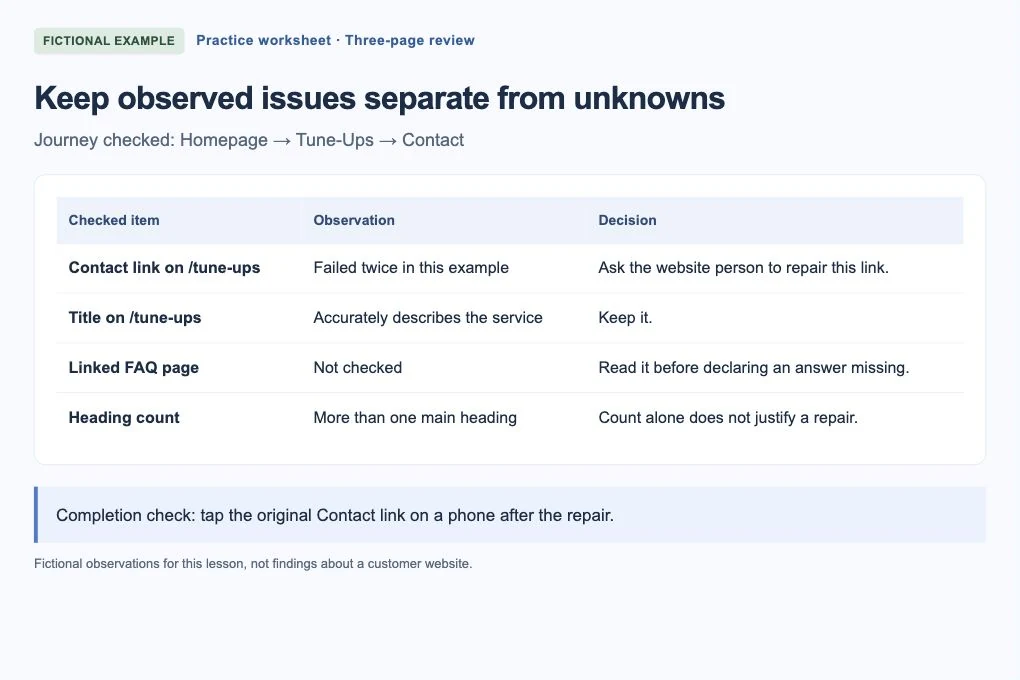
Can someone tell what is included, which limitations matter and how to request an estimate? Open a linked FAQ before declaring the answer absent. Mark pages you have not read as “Not checked.”
 Open larger image ↗
Example screen Fictional review worksheet. Write down what you checked and what you did not. A page you have not opened is not a missing page. Write a task only when it is supported.
For a broken Contact link, write “Fix the Contact link on /tune-ups so it opens /contact; then tap it again on a phone.” If it works on recheck, remove the task. Keep crawler or code questions for your website manager rather than changing settings blindly.
Recheck after the work is published.
Use the same addresses and device. Confirm the original problem is gone and the rest of the journey still works. Keep the date and result in your notes; a completed task is not a promise of more traffic.
1. Check that customers can reach the right page
Start with the practical journey: open your website on a phone, follow the service and contact links, and try to reach the information a customer needs. You can check this without changing any website settings.
A contact or service link fails
Check: Follow the link from your own menu or page, rather than only pasting the destination into the browser. Save the page containing the link and its destination.
If needed: Try again to see whether the failure persists. If it does, ask your website manager to correct the link or restore the intended page. Do not send every broken link to the homepage.
You’re done when: The original link opens the correct public page and visitors can find the intended information.
Important content is hard to use on a phone
Check: Read the page at a narrow screen size. Look for text hidden behind menus, clipped buttons or a contact method you cannot use.
If needed: Describe the specific obstacle and screen size to your website manager. If everything is readable and usable, do not add a redesign task.
You’re done when: You can read the main information and reach the next step without sideways scrolling or an overlapping control.
2. Check search access without changing privacy choices
A page opening for you does not prove a crawler can retrieve it. Ask your website manager to check failed requests, crawler rules, login requirements and whether the main content can be read by the intended crawler. Google Search Console can help investigate Google indexing; it is not a ChatGPT visibility test.
Robots.txt manages crawling, while noindex controls indexing when Google can read the instruction. Neither should be treated as a substitute for access controls on private information. Keep account pages and confidential content protected.
For ChatGPT search, OpenAI documents OAI-SearchBot separately from GPTBot’s model-training use. Review the relevant setting rather than allowing every bot indiscriminately. Google says eligible pages for its AI features must be indexed and able to appear with a snippet; eligibility still does not guarantee an appearance.
3. Review page titles, headings and descriptions
Check whether someone can tell what the page is about before reading every paragraph. The title shown in a browser tab, the main heading on the page and its description should accurately represent that page.
The main heading does not explain the page
Check: Compare the visible heading with the actual service or topic. Look for a vague slogan, conflicting prominent headings or sections that are difficult to follow.
If needed: Suggest a clearer heading only when you can describe the confusion. Multiple H1 headings alone are not a reason to prescribe a single H1 or claim an SEO penalty.
You’re done when: The main subject is obvious and the headings guide readers through the content.
A page description is missing or misleading
Check: Review the page’s description in your website’s SEO settings. Compare it with the current page, not just the wording shown by Google.
If needed: If a useful, accurate description is already saved, keep it. Otherwise draft a short summary using only facts on the page. A missing description does not mean Google cannot show a result.
You’re done when: The saved description accurately summarizes that specific page. Google may still choose different snippet text.
4. Compare a customer question with the actual answer
Choose a question that fits a service or product you sell, such as how to request an estimate or whether a product fits a particular need. Read the relevant page and any linked FAQ or guide. A menu mention is not the same as an answer.
For example, a fictional repair business may say ‘Contact us for an estimate.’ Before recommending more copy, check whether the contact page already explains which photos or details to send. If it does, a useful link may be enough. If those pages were not checked, record that uncertainty instead of calling the information missing.
You are done when a customer can find a truthful answer and the next step. Confirm prices, services, policies and timing with the business before adding any new wording.
5. Keep website checks separate from AI-answer results
Website readiness asks whether your pages are accessible and understandable. An AI-answer check asks what appeared for a particular question. Keep the platform, question, date and source links beside that result, including when details are unavailable.
If another website was linked, compare its relevant answer with your own checked pages before recommending a change. Do not treat a directory as a direct competitor without checking it, or interpret an unrelated query as a customer need.
6. Finish with a short, verifiable action list
Group supported fixes by page. For each, write what to do, the evidence, who can handle it, and how to check that it is finished. Keep optional research separate. There is no minimum number of recommendations to fill.
For a confirmed broken Contact link, a useful task is: ‘Correct the Contact link in the main menu so it opens the intended contact page. Check it from both the homepage and a service page afterward.’ That is more helpful than ‘improve technical SEO.’ If the link works on recheck, remove the repair task.
Record when you make changes. Later, look at visits and useful customer actions alongside any comparable search observations. A changed score or a different set of AI answers does not establish that an edit produced more traffic or sales.
AI Search Signal’s free account lets you scan up to 50 public pages for readiness checks. The $12 Premium report includes those checks plus outside search and AI-answer research where available. Use the fictional sample to see the format before creating an account.
If you get stuck
The page is short.
Check whether it answers its purpose. Length alone does not establish a content problem.
You do not have access to technical settings.
Send your website person the affected URL, exact error, time and device. Do not publish passwords, account screens or private URLs with the request.
Your finish-line check
Every proposed task names a checked page, an observed issue and a completion check. Unexamined pages and uncertain ideas remain separate.
Keep a note of the page or setup you checked, what you changed and the date. You can follow the written steps without buying an AI Search Signal report. Any optional subscription tools are labeled separately.