
This guide distinguishes documented platform guidance from practical observations. AI and search platforms can change, and no placement or recommendation is guaranteed.
Before you start
Choose a useful measurement, test the tracking you install and understand what it does not prove.
- Permission to edit a website, or help from its manager.
- A tracking service and its privacy setup. Signal Analytics needs a subscription; reading this guide or using Google Search Console directly does not require a paid report.
First, know what you are trying to learn
Website analytics records activity after someone reaches your website. It can help you see which pages get read and whether people use a contact link. It does not tell you everything about a person or prove that a visit turned into a customer.
Pick one practical question before looking at charts. For example: are people reaching my Contact page from Services? That gives you something specific to inspect instead of treating a bigger traffic number as success. Google Search Console answers a different question: how your website appears in Google Search, including recorded clicks, impressions and average positions.
Step by step: test the tracking before trusting the chart
Start with one question: do visitors reach my enquiry confirmation page? Search Console can tell you about Google Search activity, but it does not record the sequence of pages inside a visit. For that, you need website analytics.
Choose the action you actually want to understand.
Write it down before installing anything. “Services page → Contact page” is a browsing question. “The enquiry form was successfully submitted” needs a success signal, not just a Contact-page view.
Complete the installation for your chosen service.
For Signal Analytics, follow Setup & settings: add a site you manage, publish its verification tag and check ownership, then install its tracking script on the public pages you want measured. Verification alone does not record page views.
Test basic and detailed tracking separately.
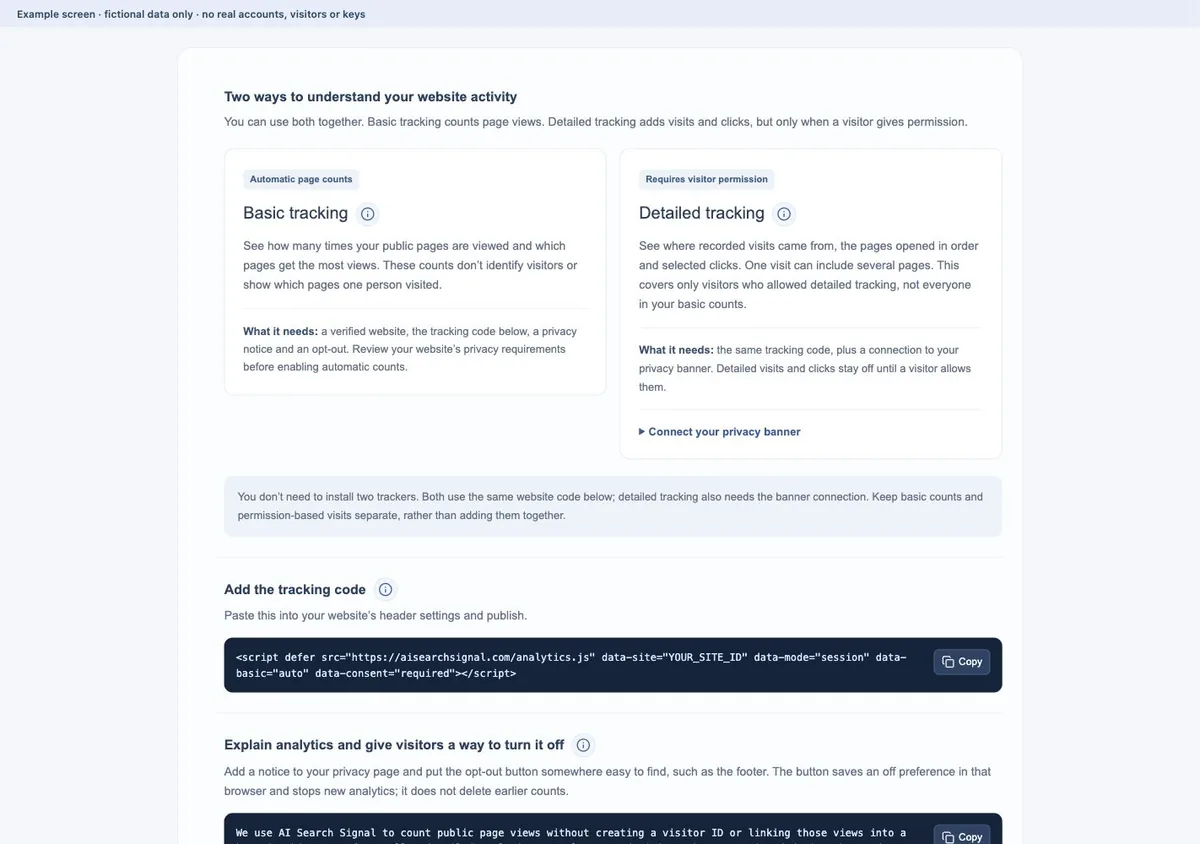
Basic tracking counts public page views without connecting them into a visit. Detailed visits need the visitor’s permission, connected through the banner. Follow the privacy notice and opt-out instructions and review the requirements for your website; do not assume that a tracking mode is automatically suitable everywhere.
 Open larger image ↗
Example screen This focused view uses the released setup component. Basic counts and detailed visits use the same tracker; detailed activity needs the visitor permission connection. Make a small, clearly labeled test visit.
Before excluding your browser, open two public pages and note the time. Confirm basic page counts can arrive. If detailed tracking is enabled, allow it and open another page, then check the recorded visit. Refresh only the analytics figures; do not run another website scan.
Add one goal and test its exact meaning.
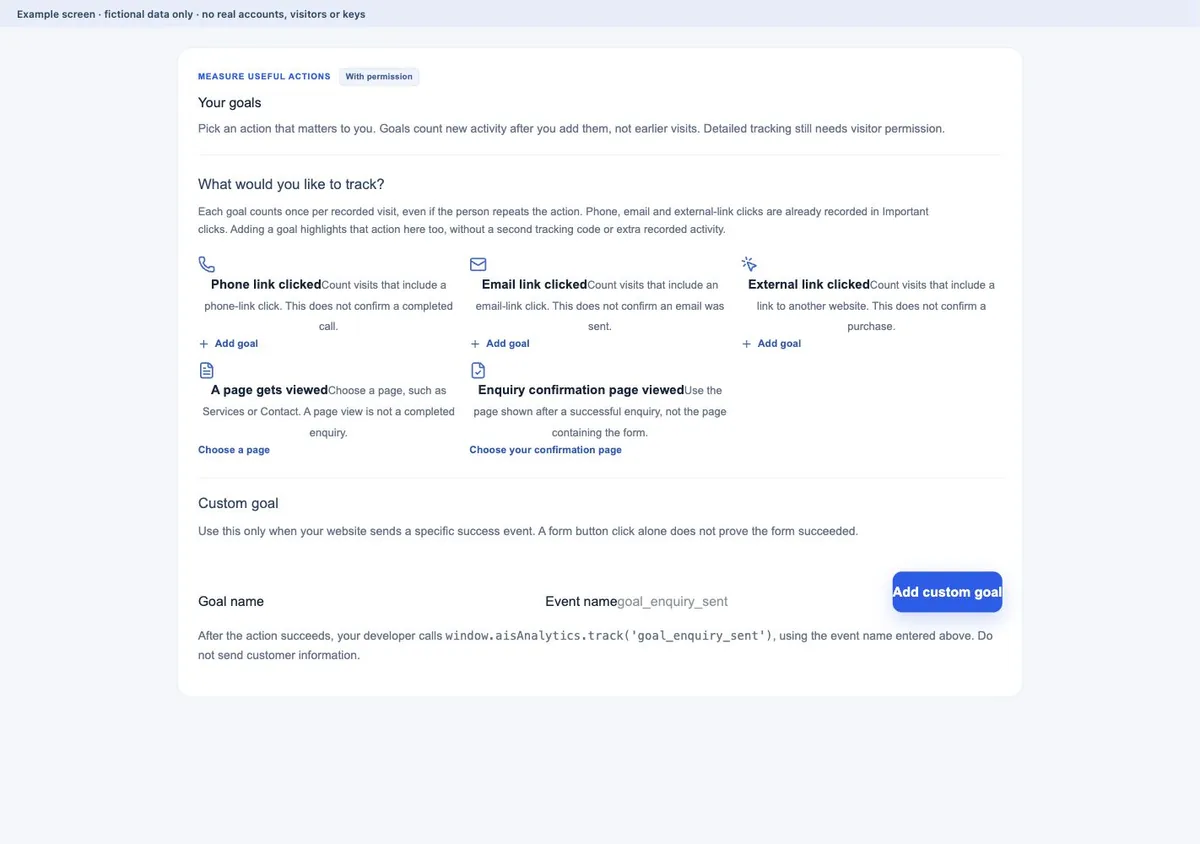
A phone-link goal counts a click, not a completed call. For a form, use a confirmation page shown only after success or a properly wired success event. Test after adding the goal; older activity is not backfilled into new goal completions.
 Open larger image ↗
Example screen Choose an action to highlight. A goal needs permitted recorded activity; a counted click is not independent confirmation of a call, enquiry or sale. Keep your own future testing out of the figures.
Use Exclude my browser in Setup & settings after your installation test. Check the active label. Exclusion is browser- and website-specific, so other browsers or devices can still be recorded. Include it again when you intentionally need another test.
Read your Google search numbers in the same dashboard
Starter, Growth and Business subscribers can connect Google Search Console inside AI Search Signal. The Overview, Search terms, Pages and Page indexing tabs keep different questions separate. Follow clicks and search appearances together, compare the last 7, 30 or 90 days with the previous period, or find a page and explore its search terms.
You can also request a page indexing check to read Google’s saved status and last crawl time, when available. It is not a live test or a request for indexing. You approve read-only access to a website already available in your Google Search Console account, with no extra tracking code. Google can delay or withhold data; missing figures stay labeled, and these numbers do not change your report scores.
A visit and a page view are different things
Imagine someone opens your homepage, reads Services and then goes to Contact. That can be one visit with three page views. If they load Contact again, that adds another page view; it is not necessarily another person.
In AI Search Signal’s visit tracking, a temporary random identifier connects recorded activity within one browser tab. After 30 minutes without recorded activity, the next activity starts a new visit. A new tab or blocked browser storage can also start a separate visit. These are recorded visits, not a verified count of individual people.
| What happened | What it means |
|---|---|
| Homepage → Services → Contact | One recorded visit, three page views |
| The visitor clicks a phone link | A phone-link click, not proof of a completed call |
| The Contact page gets viewed again | Another page view within the same visit if it has not expired |
Connect a website you manage
AI Search Signal’s Signal Analytics is subscription-only and sits inside the main dashboard. It is not included with a free scan or a one-time Premium report. You need access to the website’s settings or help from the person who manages it.
Follow the installation steps in the dashboard. The verification tag confirms that you can edit the website. The updated tracking script counts public page views automatically. Detailed visits, page journeys and clicks are recorded only after permission is given. They do different jobs, so install both where the setup instructs you.
- Open Signal Analytics in your dashboard and add your website name and HTTPS address.
- Put the verification tag in the homepage’s header settings, publish it, then choose “Check my website.”
- Install the website’s tracking script on its public pages.
- Add the privacy notice and opt-out control from setup. Check the privacy requirements for your website before enabling automatic counts. Connect your existing banner only if you also want detailed visits.
- Open a public page and refresh the dashboard to check basic counts. To test detailed visits, allow them in your banner and then view another public page.
Start with page views, then explore allowed visits
Start with the same date range each time and look at basic page-view totals and popular pages. If you enabled detailed tracking, you can also inspect allowed visits, their referring sources and the pages viewed in order. These visits cover only people who gave permission, not everyone in the basic counts. You cannot reconstruct visits from before installation.
Phone, email and external website link clicks are tracked separately. A click on a phone number does not confirm a call. A click on an email link does not confirm an email was sent. A goal is a configured action you want to count, such as reaching a particular public confirmation page; it is not independent proof of a successful enquiry or sale.
In Your goals, add a ready-made phone, email or external-link goal with one click. To track a page, choose it from the recorded-page list. An enquiry confirmation goal needs the page shown only after the form succeeds, not the Contact page. Goals count new activity after you add them and still require detailed-tracking permission. Custom success events remain an optional setup for your website person.
- A Google referral means a referring source was available. It does not reveal every search phrase the visitor used.
- An AI referral identifies a known referring domain. It does not capture every visit influenced by an AI answer.
- A page with few recorded views may have little traffic, blocked collection or a short measurement period. Check before calling it a problem.
- Use a real form-success signal or a correctly restricted confirmation page when you need to measure completed enquiries. An ordinary Contact-page view is not an enquiry.
Know which numbers you are looking at
The dashboard labels automatic public-page totals “Basic page counts.” Detailed visits, sources, clicks and goals are labeled “With permission.” They cover different sets of activity, so do not add the two sets together or assume everyone in the page counts allowed detailed tracking.
If a website has no basic counts yet, its page-view number may come from permission-based tracking instead. The label tells you which data you are seeing. “Earlier totals” keeps older totals-only tracking separate; those counts cannot be turned into a visit history.
Testing your own website? Open Setup & settings and choose “Exclude my browser.” The setting applies to that website in that browser, not all your devices or everyone at your business. You can include the browser again later without changing a visitor’s permission choice.
Check one useful change
Suppose visitors read Services but rarely reach Contact. First check whether the service page has a clear, working route to your contact details on a phone. If that route already works well, the chart alone does not establish a change you need to make.
If you do make a change, note the date and compare similar periods later. Consider campaigns, seasonal changes and whether tracking was working in both periods. A change in recorded visits alone does not prove your edit caused it.
You can separately use the free website-readiness scan to check public-page access and clarity. It requires a free account and does not install analytics or start recording visitors.
If you get stuck
Nothing appears after installation.
Check ownership status, published code, the selected website and date range, browser exclusion, blockers and permission. An empty chart does not prove no one visited.
Analytics totals and Google clicks disagree.
They measure different activity. Compare periods, installation dates, permission coverage and filters before treating the difference as an error.
Your finish-line check
You have verified what each recorded event means, know which figures require permission and can distinguish your test activity from customer activity.
Keep a note of the page or setup you checked, what you changed and the date. You can follow the written steps without buying an AI Search Signal report. Any optional subscription tools are labeled separately.
Frequently asked questions
Will tracking show earlier visitors?
No. Basic page counts start after the updated code is installed on a verified, eligible website. Detailed visits also require permission. Neither option can recover activity from before it was running.
Does Signal Analytics replace Search Console?
No. Signal Analytics records supported activity on your website. Search Console reports how your website performed in Google Search. Their numbers describe different things and do not have to match.