
Add the website and verify ownership
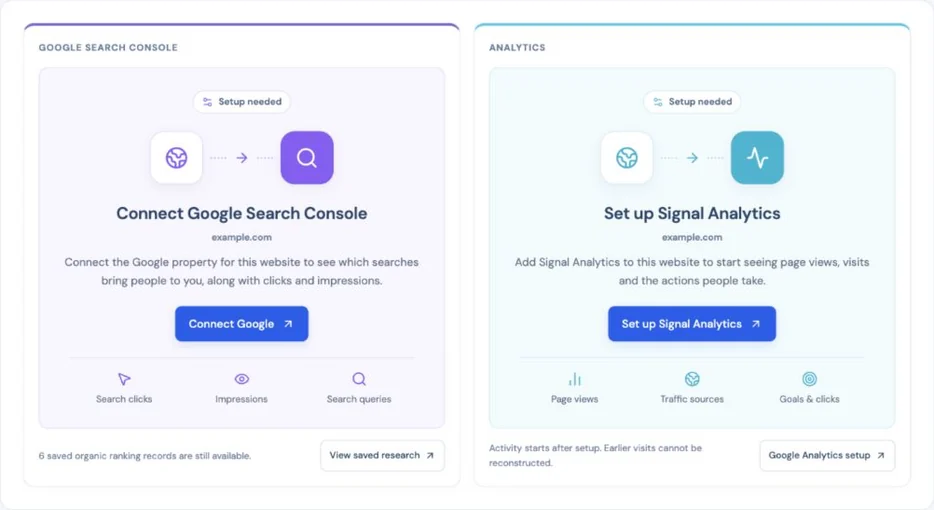
Choose your website and open Signal Analytics setup.
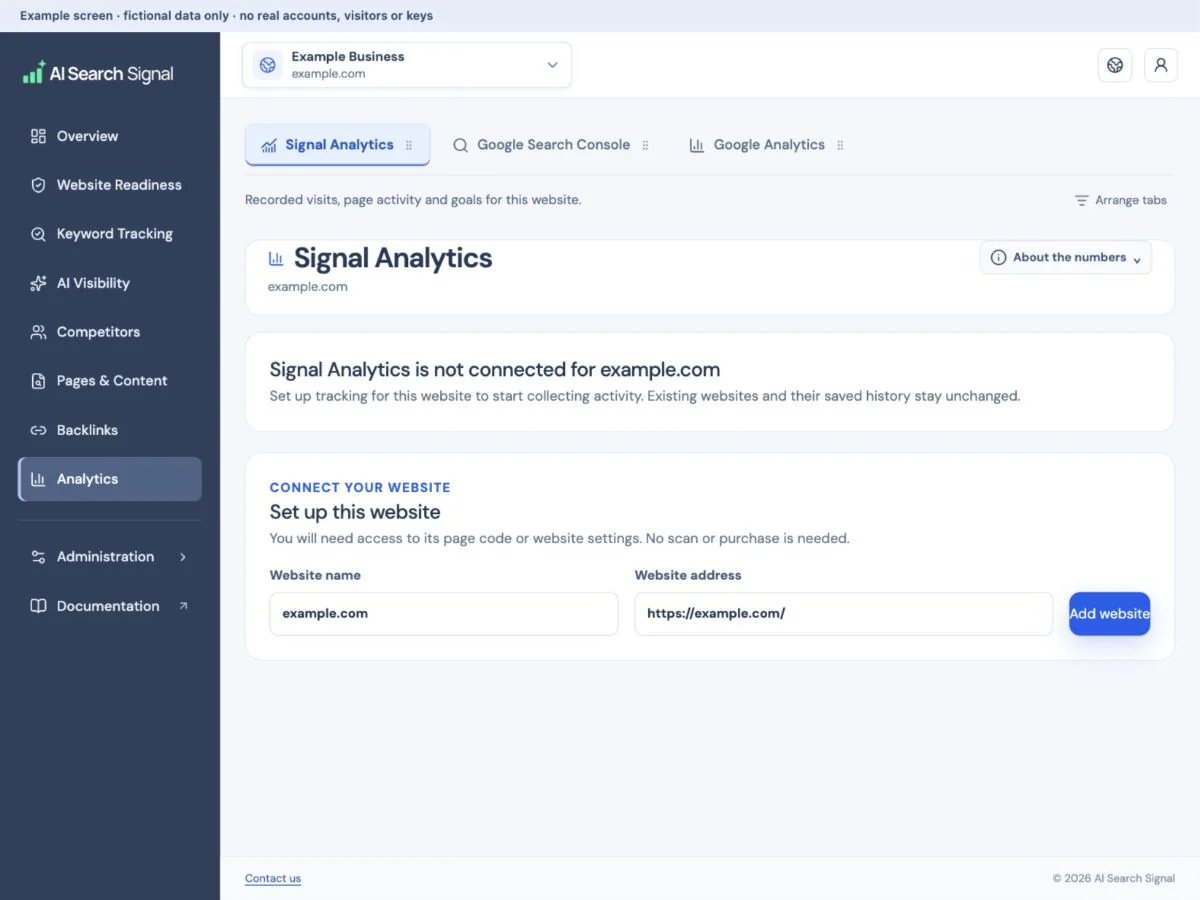
Select Set up Signal Analytics on the Overview tile, or open Analytics → Signal Analytics → Setup & settings. For your first website, fill in the website name and address. For another website, use the + beside the main website selector.
 Open larger image ↗
Example screen Open Set up Signal Analytics in Overview or use Analytics → Signal Analytics → Setup & settings. The selected website is already filled in. Installation starts future collection; it cannot recover earlier visits. Open Setup & settings.
Copy the verification tag into the homepage header settings, inside the head element. This tag proves you can edit the site; it is not the tracking code.
Publish, then select Check my website.
If verification fails, confirm that the tag is on the public homepage and not just saved in an unpublished editor. Ask your website person to check the correct address and header setting.
 Open larger image ↗
Choose what you want to understand
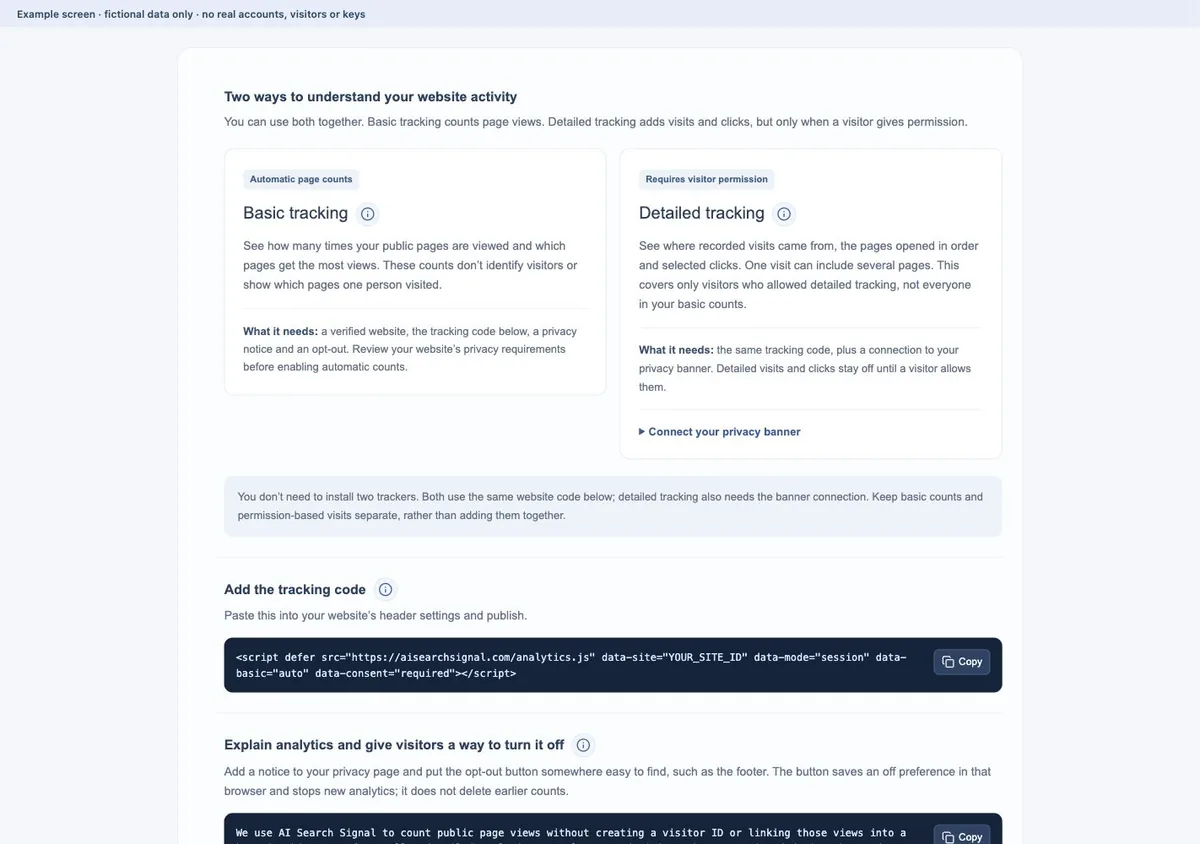
Five page views could come from one person or five people. Five pages in one permitted visit can appear as one visit and five detailed page views. A visit is not a unique customer, and the basic and detailed totals should not be added together.
Automatic counts do not make your website exempt from privacy requirements. Review the setup for your website and audience before enabling collection. This guide explains product behavior, not whether your particular use is legally permitted.
| Basic tracking | Detailed tracking |
|---|---|
| Counts public page views without a visitor identifier. | Groups permitted activity into visits using a temporary random ID. |
| Does not join pages into a browsing journey. | Can show the pages in a recorded visit, in order, plus selected clicks and goals. |
| Needs the website code, an accurate privacy notice and an opt-out. | Needs the same code and an explicit visitor permission choice connected from your banner. |
 Open larger image ↗
Install the code once
Copy the website code from setup.
Publish it in the header settings used on your public pages. Replace older AI Search Signal tracking code rather than installing the tracker twice.
Publish the privacy notice and opt-out.
Setup provides starting text and an opt-out button. Keep the wording accurate for your installation and put the control somewhere visitors can find it.
Connect your existing privacy banner for detailed visits.
The permission snippet does not create a banner. Your website person connects the visitor’s saved choice on every page and whenever it changes. Pass true only after an explicit Allow; pass false for Decline or withdrawal. A false choice stops basic and detailed tracking.
Check a public page, not your private dashboard
Open your public homepage, then return to Signal Analytics and use Refresh. To test detailed visits too, allow them through the connected banner. Login, account, checkout and private report pages are excluded from tracking.
If no activity appears, check the selected period, published code, verification status, paused collection, allowance, browser exclusion and privacy choices. Browser blockers can prevent collection. “No activity recorded” does not prove nobody visited, and setup cannot recover activity from before installation.
Read the page-view graph and source pie
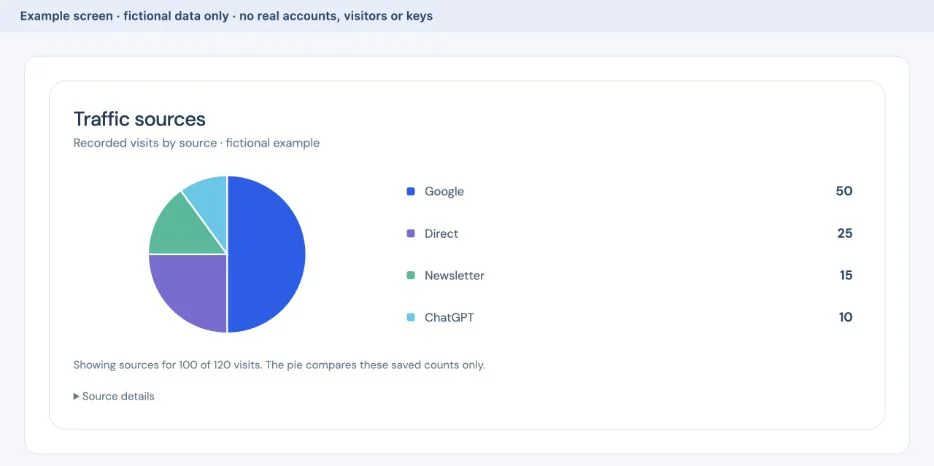
Recorded page views shows daily activity for the selected period. Traffic sources compares the source rows available for permitted detailed visits, or separately labeled earlier page views. These are different datasets. A visit is not a unique person, and source rows can cover only part of the total.
Use the legend to inspect a source, then open Source details for its rows and coverage. Direct can mean the referrer was unavailable, so do not treat it as AI traffic. Missing activity can reflect installation, permission or collection limits rather than no visitors.
 Open larger image ↗
Keep your own visits out and highlight useful actions
In Setup & settings, select Exclude my browser. Check that the status confirms the exclusion. Use Include my browser again to reverse it. This applies to that browser on that device and website, not your whole account. Including it again does not accept optional tracking or undo an opt-out. Earlier activity stays saved.
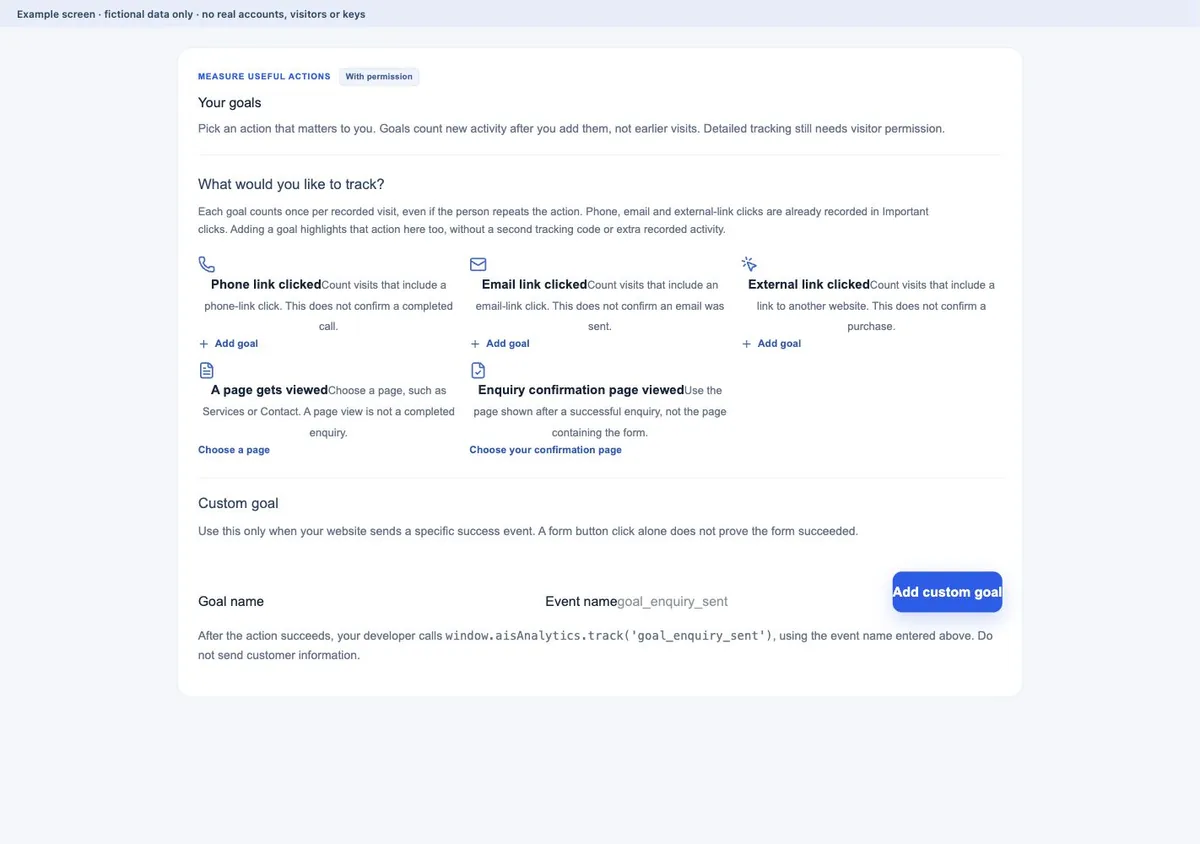
In Goals, choose a phone, email or external-link preset, or a relevant page. These clicks are already in Important clicks; a goal highlights an action rather than adding another tracker. Each goal counts once per permitted recorded visit. A custom event needs your developer to send it after the intended action succeeds.
A goal completion does not independently prove a call, enquiry or sale. Compare it with your real business records before calling it a conversion.
 Open larger image ↗
Useful links
Product documentation prepared with AI assistance and checked against the current application. If a step no longer matches your dashboard, let us know. Do not send passwords or connection keys.