
This guide distinguishes documented platform guidance from practical observations. AI and search platforms can change, and no placement or recommendation is guaranteed.
Before you start
Write, publish and check one accurate page title without changing the page address.
- One existing public page and permission to edit its SEO settings.
- A copy of the current title, so you can restore it if needed. No paid report is required.
Know which title you are changing
The SEO page title is the title saved in the page’s HTML title element. Your website builder may call its setting “SEO title” or “Page title.” It often appears in the browser tab and can help Google choose the clickable title in a search result.
The large heading visitors read on the page is a separate element, often called an H1. The search description is separate again. They should describe the same page, but they do not need identical wording. Google can choose different title text for a search result.
Step by step: update one page title
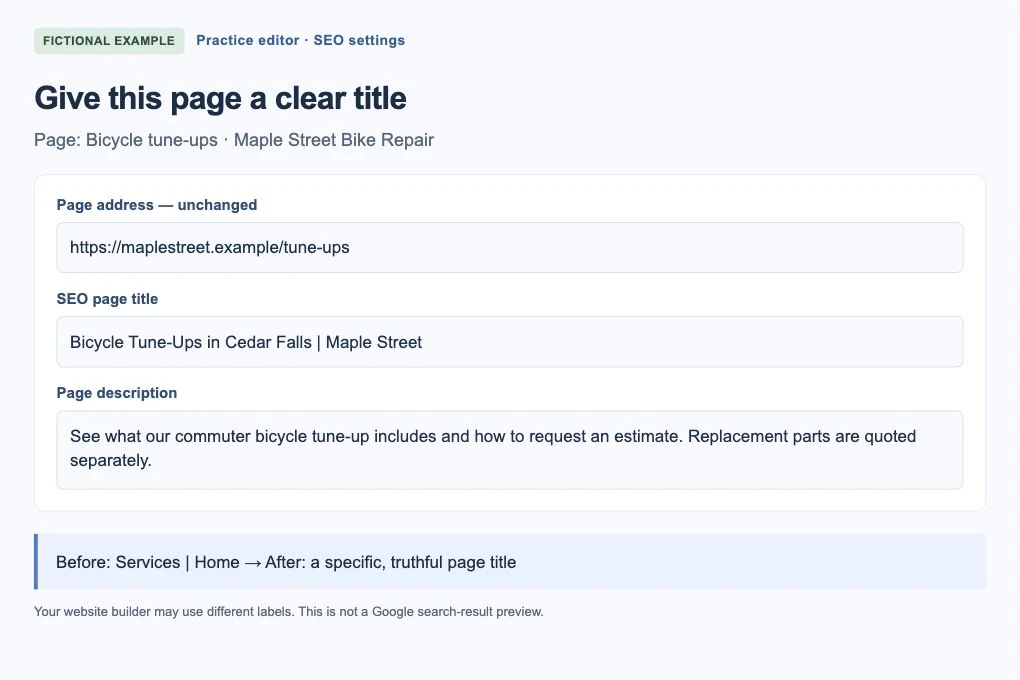
Start with a page whose subject is unclear in the browser tab. If the title already describes the page well, keep it. The practice screen below is generic; your editor may use different labels.
Read the page and name its one main job.
Open the public page. Write a plain sentence about what someone can do or learn there. For a bicycle tune-up service page, that is booking or understanding a tune-up—not every repair the shop offers.
Find the title setting for that exact page.
In your website editor, open the page and look for SEO, Search appearance or Page settings. Find SEO title or Title tag. Do not confuse it with the large heading, the navigation label or the URL. If you cannot find it, send the page address to your website person.
Draft from the facts on the page.
For the fictional workshop, “Bicycle Tune-Ups in Cedar Falls | Maple Street” is clearer than “Services | Home.” Use the service and place only if the business really offers them there. Keep useful wording; leave out repeated keywords and unsupported “best” claims.
Preview it, then save or publish.
Check that the title still makes sense if its ending is shortened. A preview is a guide, not a promise of Google’s display. Keep the URL unchanged and save the old title in your notes.
 Open larger image ↗
Example screen Fictional practice editor, not a specific website builder. The title, visible heading and description have separate jobs. Keep the existing URL unless a separate change is needed. Check the public result, not just the editor.
Open the same public URL in a new tab and inspect the browser-tab title. If it still shows the old wording, confirm you published the correct page and ask your website person about caching. Google may choose different text and may not update immediately.
Describe the page before adding a slogan
Try this starting pattern: the main service or topic, one useful detail if needed, then a short business name. It is a drafting aid, not a ranking formula. Leave out any part that is not accurate or does not help distinguish the page.
All examples below are fictional wording examples, not claims about a real business or search performance. Use your own services and service area. Do not add a location, price or turnaround promise unless the page supports it.
| Vague or repetitive title | A clearer draft | Why it is clearer |
|---|---|---|
| Home | Maple Street | Bicycle Repair in Cedar Falls | Maple Street | Names the real service and location, if both are supported |
| Services Services Bike Service Repair | Bicycle Tune-Ups | Maple Street | Says which service this page covers without repeating variations |
| The Best Solutions for You | What Is Included in a Bicycle Tune-Up? | Maple Street | Tells the reader which question the guide answers |
| Contact | Maple Street | Contact Maple Street Bike Repair | Adds useful business context without inventing an offer |
Make each title fit its own page
Open the page and write a one-line description of what someone can actually do or learn there. Compare that with the saved title. If the title already describes the page clearly, you do not need to rewrite it simply to make a report look busier.
If two pages have nearly identical titles, check their purposes before changing the wording. A service page and a detailed guide may need different titles. Two pages answering the same question might need a content decision, not just two different headlines.
- State the page’s main subject clearly.
- Include a location only when it meaningfully describes that page.
- Keep the business name short enough that it does not overwhelm the subject.
- Avoid unsupported words such as “best,” invented prices or services you do not offer.
- Keep the main visible heading easy to identify. Multiple H1s alone do not establish a problem.
Keep it concise without chasing a character rule
Google recommends descriptive, concise titles. It does not set a fixed character limit for the title element; displayed search titles can be shortened to fit the device. A preview in your builder is useful, but not a guarantee of the final display.
Put the useful subject early. Do not repeat the same keyword in several forms or attach a long list of nearby towns to every title. A title should help someone choose the right page, not read like a search-term list.
Save the change and check the actual page
Find the title field in the page’s SEO settings. Keep the URL unchanged unless you have a separate reason and a safe redirect plan. Save and publish the title, then reopen the public page. Check the browser tab or ask your website manager to confirm the HTML title.
Make sure the visible heading still makes sense with the new title. If you changed a service name or added a claim, check the rest of the page for consistency. You are done when the saved public-page title accurately describes the content, not when Google immediately shows your preferred wording.
A quick title handoff
Check: Send your website manager the exact page URL, current title and proposed title.
If needed: Ask them to confirm the draft against the page, publish it in the SEO title field and leave the URL unchanged.
You’re done when: The public page has the intended title and its heading and content still describe the same subject.
Measure later without promising a result
Record what you changed and when. Search Console can help you compare the page’s Google impressions, clicks and average position over comparable periods. A title edit does not guarantee more clicks, a higher position or an AI citation.
The free website-readiness scan can help flag page-title and structure checks. Review the actual page before making a change. Open Pages & Content in your saved dashboard to review a page. Growth and Business include AI writing; manual edits and exports do not use an AI allowance. Check every suggestion against the current page.
If you get stuck
The large heading did not change.
That is expected when you edited the SEO title. Change the visible heading only if it has its own clarity problem.
Google still shows a different title.
Confirm the published title first. A search result can be older or use other text; repeatedly rewriting the title is not a reliable fix.
Your finish-line check
The intended public page has the accurate title you saved, its URL still works, and you have recorded the old title and change date.
Keep a note of the page or setup you checked, what you changed and the date. You can follow the written steps without buying an AI Search Signal report. Any optional subscription tools are labeled separately.
Frequently asked questions
Is the SEO title the same as the main heading?
No. The SEO title is saved in the page’s HTML title element; the main heading is visible within the page. They should describe the same subject, but can use different wording.
Will Google show the exact title I save?
Not always. Google uses several sources when choosing a search-result title, so the displayed wording may differ from your saved title.